Control exactly when, how, and under what conditions your property can be booked. Use Guesty's availability tools to align your calendar with operational needs, maximise occupancy, and prevent booking conflicts.
This article covers the different ways to manage listing availability and how these tools work together.
Block the listing to prevent bookings
When you block a listing, it becomes unbookable in all your connected channels. Guests can't see the listing when searching for availability and can't book it.
You can block dates manually or configure settings to block the listing automatically based on specific conditions.
Create manual blocks
Use manual blocks in the calendar to make the listing unavailable on a case-by-case basis.
For example, block dates for unexpected property maintenance or add manual blocks for the night before or after a reservation to accommodate early check-in or late check-out.
Set automatic blocks
Configure settings in advance to automatically block the listing in certain scenarios:
- Set rental periods: Make the listing unavailable for booking, except during rental periods.
- Accommodate early check-in or late check-out times: Set automatic blocks to block the night before or after a reservation.
- Block linked listings: Use Smart Calendar Rules to automatically block one listing when a connected listing is booked. When a reservation is made for listing A, a Smart Calendar Rule automatically blocks related listing B for the course of the reservation.
- Set night limits: Specify the maximum number of nights a listing can be booked in a year by setting an annual night limit. Once reached, the listing blocks automatically.
- Prevent last-minute bookings: Use advance notice (cut-off hours) to require a minimum amount of time before a reservation can be made. For example, if you set a 3-day advance notice on Dec 17th, the earliest check-in date available is Dec 20th.
- Prevent guests from booking too far in advance: Set a booking window. For example, a 24-month window prevents bookings for 36 months in the future.
- Block one or two nights before or after each confirmed reservation: Use preparation time blocks.
- List or unlist a listing automatically on specific days and times: Use snooze publishing.
- Set a check-in window: Use a check-in window to limit availability for new check-ins after a reservation ends (for example, only 5 days after check-out). This helps minimise gaps in your calendar.
Booking conditions for guests
Adjust the listing’s default settings to control the conditions for new bookings.
- Set a default minimum and maximum stay requirements.
- Configure different minimum nights per day of the week.
- Manual reservations can override these settings.
- When importing a listing from Airbnb, the Airbnb default minimum and maximum nights import to Guesty.
- Determine the maximum number of guests permitted.
- Configure house rules to allow children, infants, or pets.
Dynamic availability: Check-in, check-out, and length of stay requirements
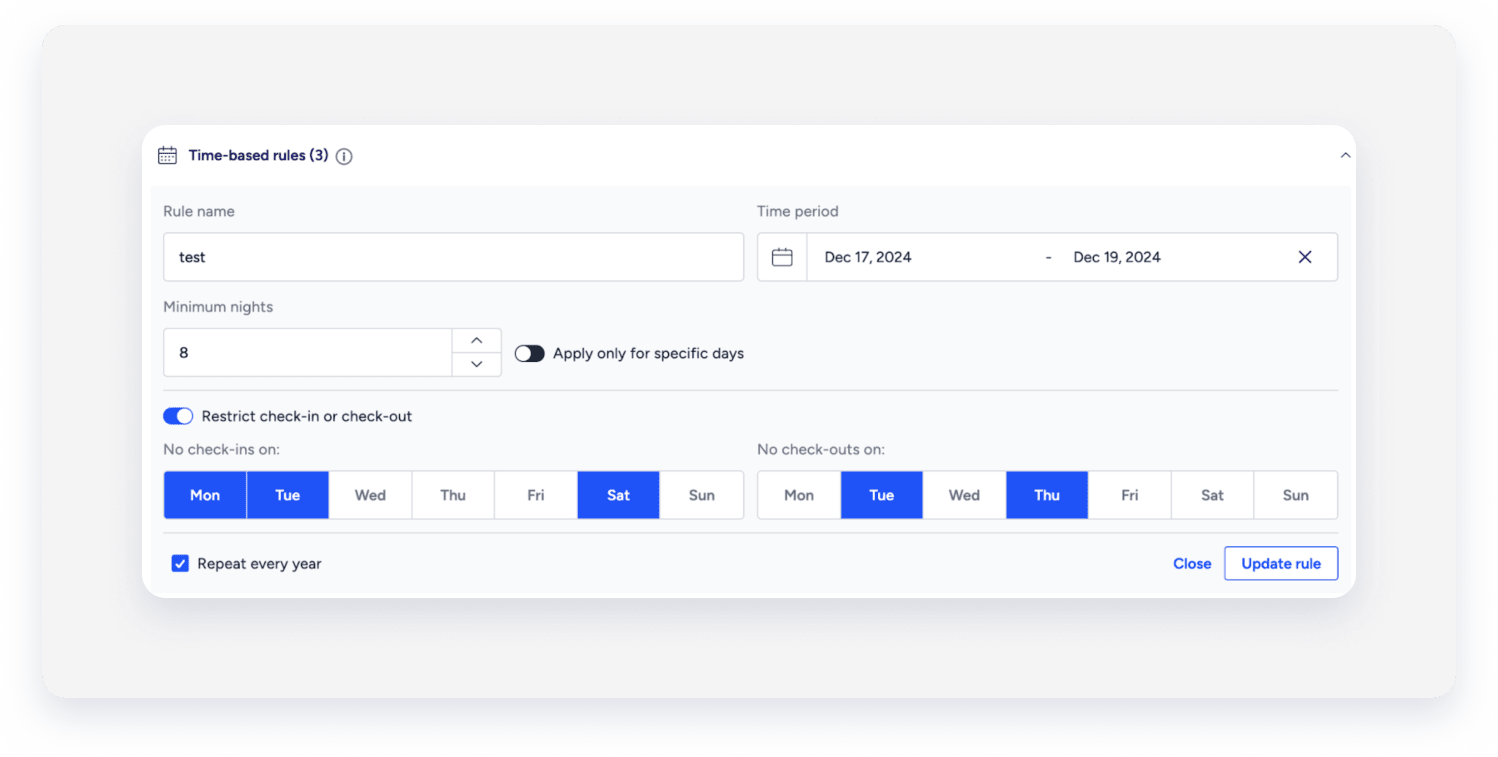
Use dynamic tools to customize minimum stay requirements, check-in and check-out restrictions, and nightly rates for specific periods (such as off-peak seasons, holidays, or weekends).
Learn about using pricing tools to optimize rates.
Manual adjustments
Adjust the minimum nights per stay for specific dates. directly in the calendar. These changes apply instantly.
When importing a listing from Airbnb, calendar minimum nights are imported and treated as manual overrides.
Combining with other tools
- Third-party tools: Adjustments made by third-party tools are treated as manual adjustments in the calendar. To avoid conflicts, don't use manual adjustments and third-party tools simultaneously, as they may override one another.
- Guesty PriceOptimizer: Manual adjustments (and third-party tool adjustments) sync with Guesty PriceOptimizer and won't get overridden.
Guesty PriceOptimizer
Guesty PriceOptimizer is a machine-learning tool that recommends nightly rates based on market trends.
You can add minimum nights rules and restrict check-ins and check-outs via the PriceOptimizer settings.
When deactivating the PriceOptimizer, minimum nights revert to the listing's default values.
Combining with other tools
- Manual adjustments (including third-party tools): Sync with PriceOptimizer and are not overridden by it.
Third-party availability tools
Use third-party marketplace tools to adjust the minimum nights and apply check-in or check-out restrictions.
If you disconnect a third-party tool, minimum nights won't automatically revert to the default setting. You must manually adjust them to reset.
Combining with other tools
- Manual adjustments: Third-party tools' adjustments are treated as manual calendar adjustments. Avoid using them together in Guesty to prevent overrides.
- Guesty PriceOptimizer: Won't override third-party tools.