After you connect your Airbnb account to Guesty and import your listings, you can connect your Booking.com listings in the following ways to manage them from Guesty:
- Link a listing when it exists in both Guesty and Booking.com to connect them.
- Publish a listing from Guesty to Booking.com if it doesn't exist in Booking.com yet. This option is available only for paying users.
This article explains the process of publishing your listings.
The default connection type for a published listing is set to full sync by default. Learn where you should manage your listings, reservations, and guest communication based on your connection type.
You can switch your connection type according to your needs.
Limitations
- Taxes can be synced to Booking.com only upon the initial publishing. If you update a tax value in Guesty after the initial publish, they won't sync to Booking.com unless the status of the listing on the Booking.com Extranet is "XML: Being Built". Therefore, for any future tax updates, contact Booking.com.
- A temporary restriction may be placed on a new account during the publishing process while under review. The restriction is lifted once your property meets Booking.com’s verification criteria. Learn more aboutmanaging new partner restrictions on Booking.com.
- If updates are made to the listing address and title in Guesty after the listing is published, update them manually on Booking.com as well.
Before you begin
- Connect your Airbnb account to Guesty and import your listings.
- List the listing in order to connect it to Booking.com.
- The listing must have at least one week of availability in the next 90 days.
- Add a license number in Guesty if required.
Publish a listing
Follow the instructions below to publish listings from Guesty via the Booking.com Channels page.
Step by step:
- Sign in to your Guesty account.
- In the side navigation menu, click
 Channels to open the dropdown menu.
 - Select Booking.com.
-
To create a new account, click Create a new account.
If you already have a Booking.com account, click Use an existing account, and navigate to Booking.com to set Guesty as your connectivity provider.
- In the pop-up, enter the required details to create your Booking.com account. All fields are mandatory.
-
Click Submit.
A pop-up will be displayed if an error is detected. Wait 30 minutes and then click Try again. Verify the provided details are correct. If the issue persists, click Contact support.
-
You'll receive a contract within 24 hours from Booking.com to the email address used to create the account. Once it is signed, return here and click I’ve signed the contract.
If you didn’t receive the contract, click Resend the contract.
-
The system will check your account status. Once approved, you can start to publish your listings. Click Publish listings to Booking.com.
In case there was an issue creating your Booking.com account, click Contact support.
-
On the “Select a listing” page:
Note:
All fields are required.
Listing name: Select the listing you’d like to publish from the dropdown menu.
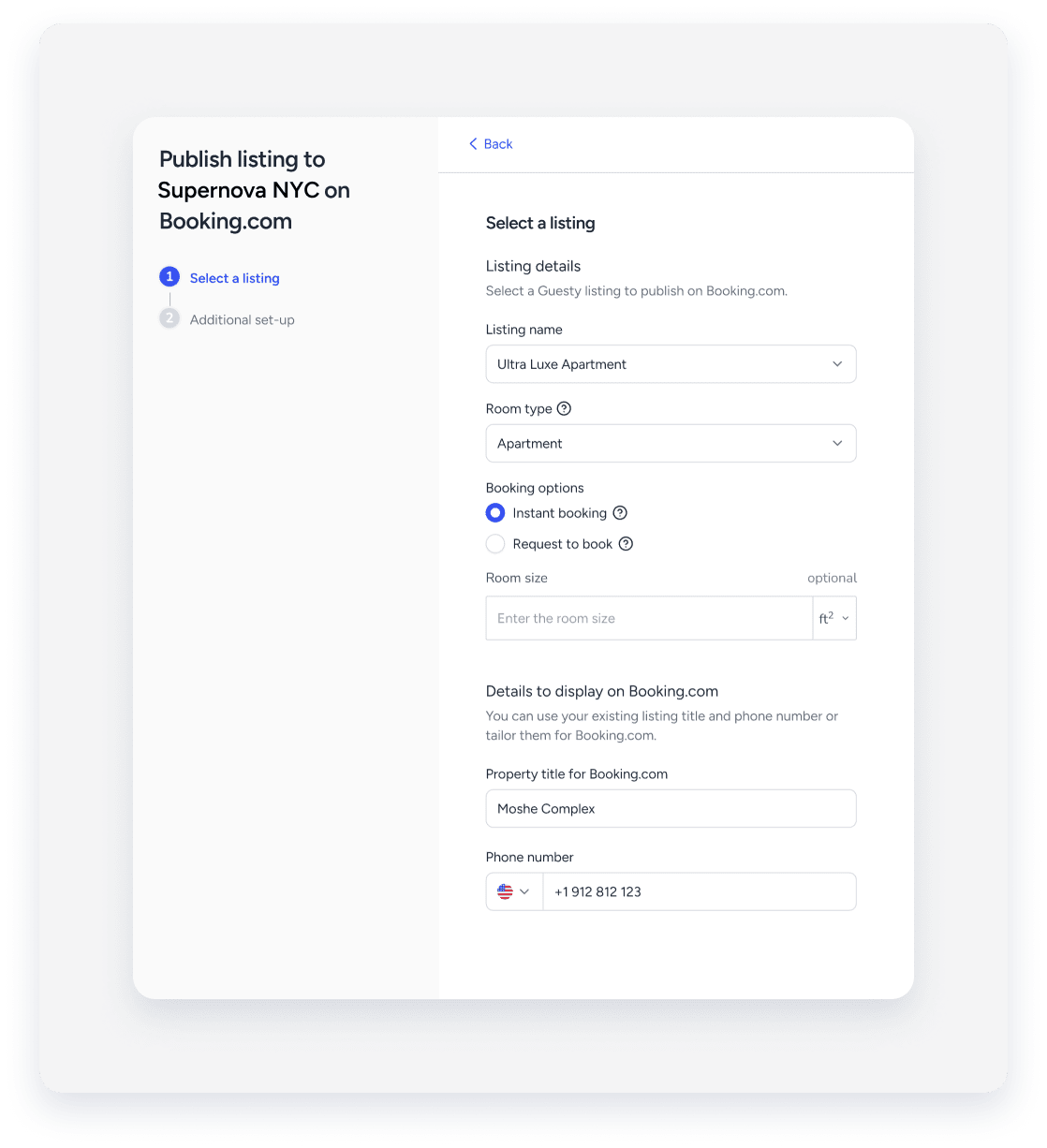
Room type: Select the listing’s relevant room type from the dropdown menu. Ensure that the room type you choose best describes your listing.
Selecting a room type may prompt you to add some additional information required for this type of room. For example, you may be asked to fill in the maximum occupancy for the listing, list the included amenities, etc.
Booking options: Select the listing’s booking policy, Instant book or Request to book. Instant book is selected by default.
Request to book is only available for the following room types:
- Holiday home
- Apartment
- Villa
Room size: Add the room size.
Details to display on Booking.com: Enter the property title and phone number as they appear in Guesty. Ensure both fields are valid and with no restricted values. The property title must exclude the following:
- Prohibited values: email addresses, website links, phone numbers, emojis, repetitive special characters, or repetitive capitalized letters.
- Prohibited terminology: annex, arab, arsenal, charg, chef, comfortable, God, german, kayak, kill, sue, wifi, wth, yards.
- Click Next.
-
On the “Additional set up” page:
Note:
All fields are required.
Child guest policy: Toggle on or off Allow children to stay in the property. Set to allow children by default.
0 is the minimum age allowance and 12 is the maximum age allowance. The child rate fee plan is based on the extra person cost configured in Guesty and can be edited at any time. You can update the child policy at any time.
Cancellation policy: Select the cancellation policy and cancellation fee from the relevant dropdown menu.
- A cancellation policy is displayed on Booking.com as a rate plan.
- The cancellation policy in Guesty will replace the rate plan you set in Booking.com.
- You can adjust your cancellation policy in Guesty at any time.
License details: Depending on the property’s location and the relevant regulations for the area, you may be required to enter your license details. If required, you'll encounter an error if you try to publish the listing to Booking.com before adding the license number.
Important:
Guesty does not take responsibility for the compliance of regulations or the completeness or accuracy of any summary or article relating to regulations and encourages all property managers to review and comply with all country, state, and city regulations.
- Click Publish.
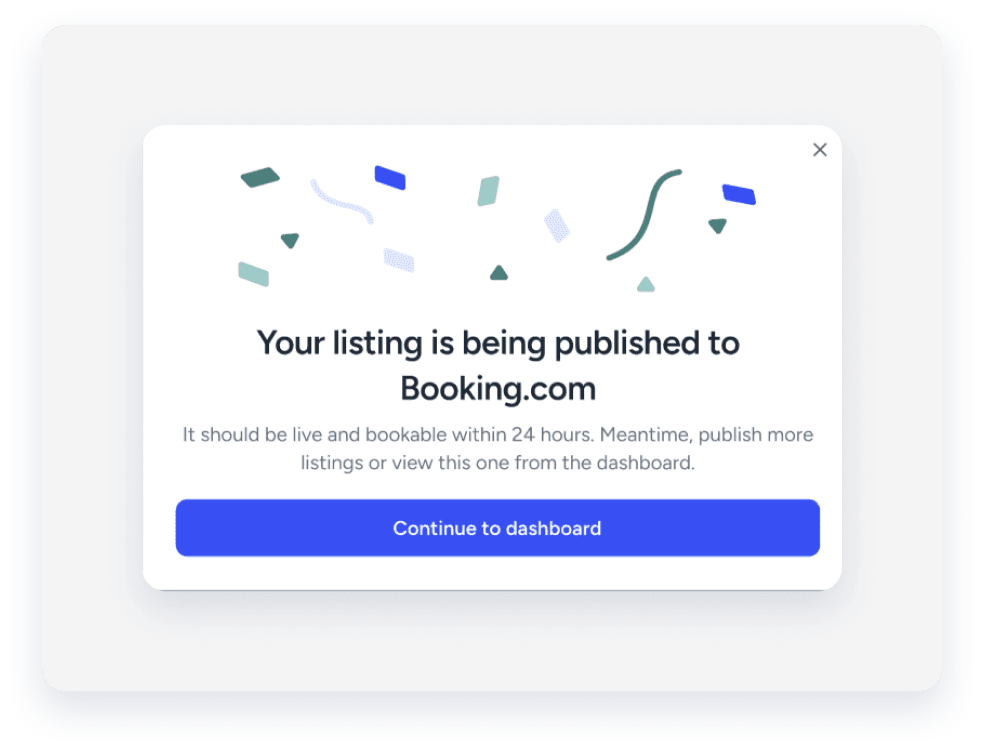
- Click Continue to dashboard.
- To set up payments now, click Enable payments on Booking.com.
- Payments by Booking.com / online payments are both pending Booking.com’s approval. You can check your eligibility and sign up from the Extranet’s Finance page.
- Before approval for payment services from Booking.com, listings will be marked as "cash only," and guest credit card details will not be collected. After approval, manually record a new payment in the reservation's payment section in Guesty and mark it as paid. Guesty will then update the listing with your payment processing settings
It may take up to 24 hours following publishing the listing until you can check your eligibility & sign up for Booking.com payments solutions.
Publishing a listing may take up to 3 business days once you complete the setup process. During this time, the connection status will display as "Pending". Contact us if the listing remains "Pending" for more than 3 days.
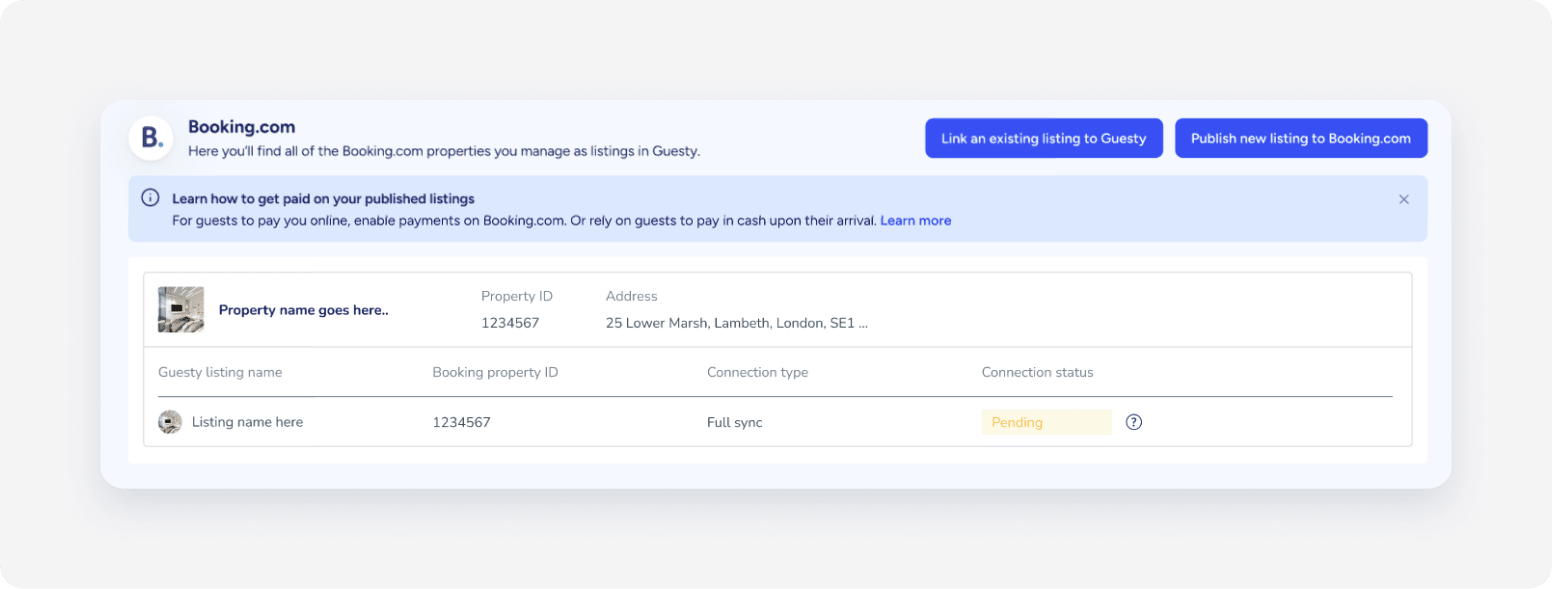
Fixing publishing errors
If a listing connection status displays "Failed" in the Booking.com integration page in Guesty, click How can I fix it? In the pop-up, click Fix now to be redirected to the correct page where you can make the required changes.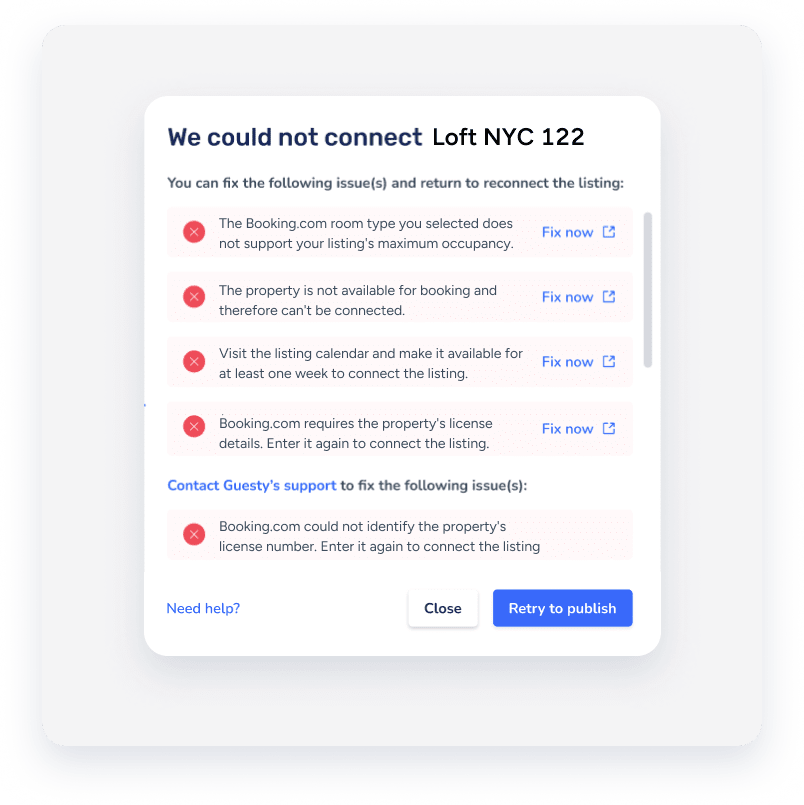 Once done, return to the Booking.com integration page in Guesty and click Retry to publish.