After a reservation is created, you can make various changes to its status and details. Changes to a reservation must be made either in Guesty or in the booking channel.
General limitations
- The listing must be active to update a reservation.
- Calendar-based tasks are set to a specific timeframe and a particular listing or reservation. When a task applies to a reservation, changes to the reservation dates or assigned listing don't update the task. Edit the task to resolve this.
- Reservations with a length of stay of more than 730 days can't be changed.
- Guesty doesn't support changing the guest in a reservation. Instead, cancel the reservation and recreate it manually.
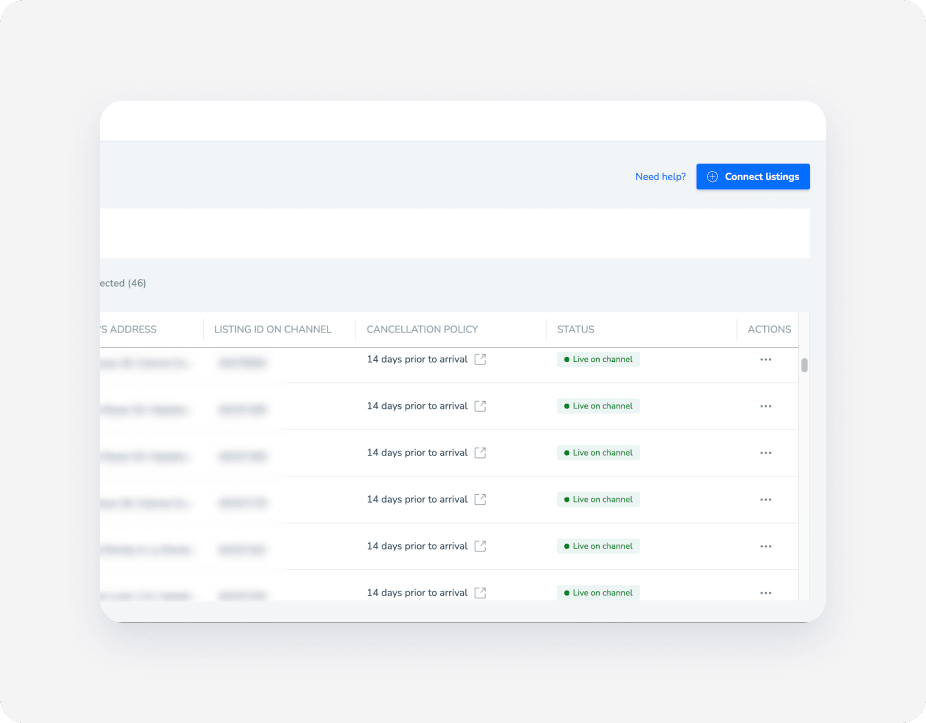
- Changes only sync between Guesty and the channel if the listing's connection status with the channel is “Connected” or “Live on channel”. You can check the connection status of the listing on the relevant channel's distribution page, under the “Status” column.
Changes or updates you can make to a reservation
Review the types of changes and updates available for reservations.
- Update the reservation status (for example, from "Reserved"/"Inquiry" to "Confirmed").
- Update the stay status (for example, “Checked-in” or “Checked-out”).
- Report a guest as a no-show to Booking.com.
- Change the dates of a reservation (modify the check-in date/check-out dates).
- Cancel a reservation.
- Update the estimated time of arrival (ETA) and estimated time of departure (ETD).
- Manually add blocks before or after a reservation with early check-in or late check-out.
- Update guests’ personal information (for example, contact details and basic info).
- Change the number of guests in the reservation (also, make an age breakdown in manual reservations and direct bookings).
- Change the number of pets in a reservation (manual and Vrbo reservations only).
- Add or change the payment method of the reservation.
- Add line items/ adjust existing line items to the guest folio, including:
Where to make changes or updates
Check below whether to change a reservation in Guesty or the reservation’s channel of origin, depending on the channel.
Ask the guest to send an alteration request on Airbnb to update a reservation. Approve or decline the alteration request on Airbnb.
Changes made in Guesty don't sync to Airbnb. Changing the assigned listing in Guesty disables the reservation's messaging and payment setup.
Important:
An Airbnb reservation has a limit of three alterations per day.
When to change in Guesty
- Reservations after check-in for the following cases:
- Report a guest's credit card as invalid to Booking.com. If the guest hasn’t updated their credit card within the provided time frame, cancel the reservation in Guesty.
When to change in Booking.com
- Reservations before check-in.
- Reservations after check-in, for cases other than the ones listed above.
To move a reservation to a different listing (another Hotel ID), cancel the reservation in Booking.com and create it again with the new listing. The new reservation syncs to Guesty.
Only the guest can change the room in their reservation to another room in the same listing (a different Room ID under the same Hotel ID). The change automatically syncs to Guesty.
Change in Guesty for the following sources:
- Manual reservations
- Guesty Booking Website
If you have a limited sync connection type, change the reservation directly in Vrbo.
If you have a full sync connection type, change the reservation in Guesty.
Change a reservation via the reservation page
Follow the steps below to change a reservation in Guesty. To change an Airbnb reservation, refer here.
Step by step:
- Sign in to your Guesty account.
- In the side navigation menu, click
 Reservation report.
 - Click the relevant reservation.
- In the submenu, click Overview. Then, click
 and select the relevant action. You can also click one of the quick actions in the top-right corner of the reservation page. These change according to the reservation status.
Tip:
You can also change a reservation via the Inbox or Multi-calendar. Locate the relevant reservation and click  in the right side panel.
