If a guest is checking in early or checking out late, be sure to check the "Block the night before" or "Block the night ahead" checkboxes to avoid overlapping reservations. This will eliminate the risk of a new guest checking in before a previous guest has checked out, or before you've had the chance to complete the pre-check-in/ post-check-out tasks.
Learn about all available reservation changes and updates you can make.
Before you begin
These blocks can be added for reservations from all sources. When triggered, the blocks will appear in gray before or after the reservation on the calendar.
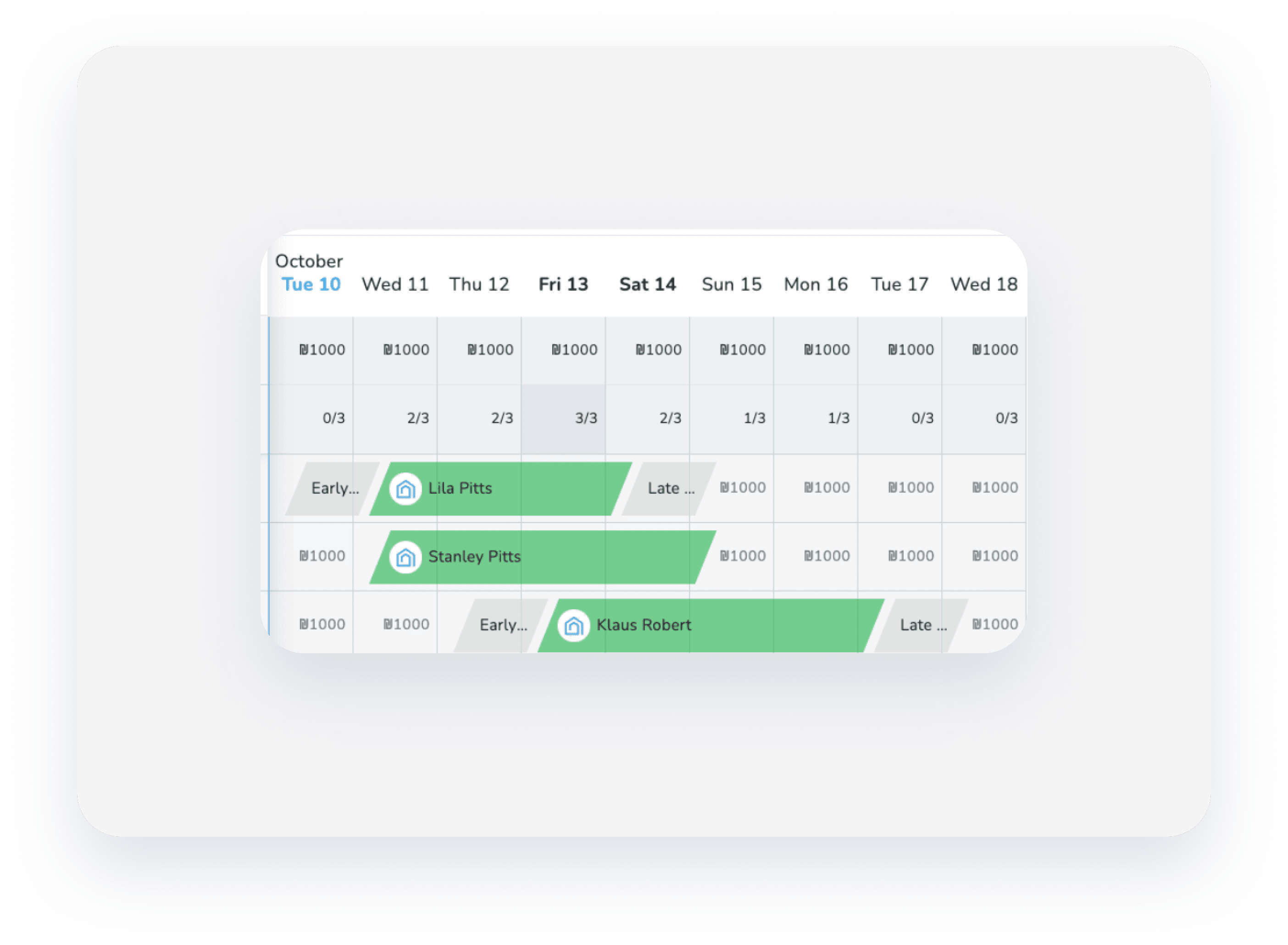
You can also add automatic blocks for future reservations with early check-in/ late check-out times.
Follow the instructions below to add or remove the block(s) via the reservation page
Add an early check-in or a late check-out block
Step by step:
- Sign in to your Guesty account.
- In the side navigation menu, click
 Reservation report.
 - Click the relevant reservation.
- In the Overview tab, in the reservation timing tile or in the quick actions section, click
 and select Block the night before check-in and Block the night after check-out from the dropdown menu.
- You can also block the nights before and after a reservation when updating the check-in and check-out times.

- You can also block the nights before and after a reservation when updating the check-in and check-out times.
- Click Save.
Tip:
You can also add the early check-in or late check-out blocks via the Multi-calendar, a listing's calendar or the Inbox. Locate the relevant reservation, and click  next to "Dates".
Remove an early check-in or a late check-out block
In the Overview tab, in the reservation timing tile or the quick actions section, click and select Unblock the night before check-in or Unblock the night after check-out from the dropdown menu.
