Personalize each guest’s experience by creating up to 50 unique Guest Apps for specific listings, channels, or languages. Tailor your branding, messaging, and legal agreements to suit different groups of reservations.
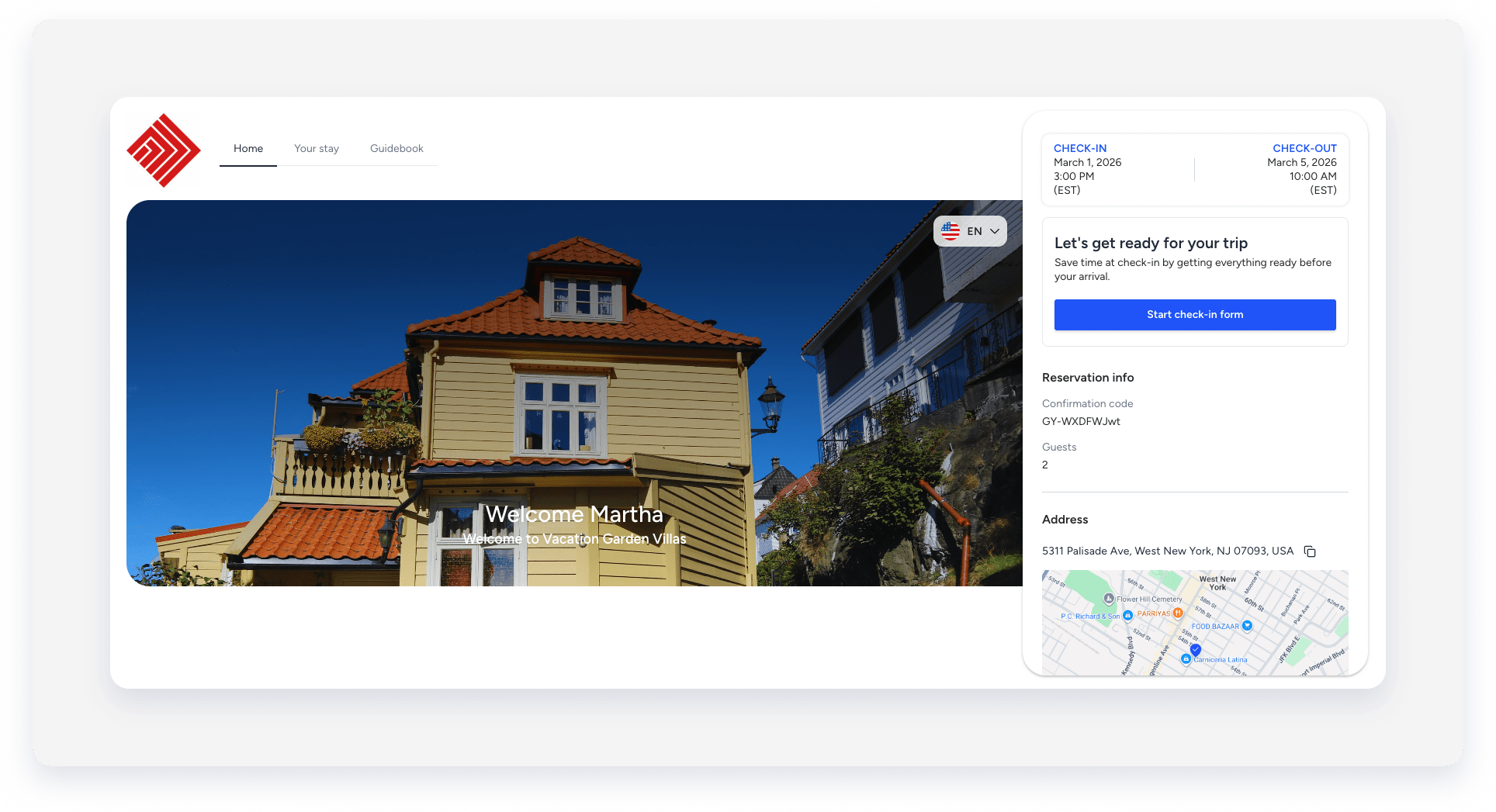
The Guest App supports Spanish, German, French, Portuguese, and Italian. The app automatically displays content in the guest's device or browser language. If that language isn't supported, it defaults to English. Guests can also switch between available languages directly within the app.
Guest App check-in form
Use the Guest App to send check-in forms and gather essential details—such as IDs, contact info, and arrival times—before guests arrive. Automating data collection saves time and ensures a smooth check-in. Use the form to share terms and conditions or request marketing consent.
Learn how to manage completed check-in forms.
Guest details override
When a guest submits the form, their information syncs with the reservation guest details. This overrides existing data in Guesty.
The check-in form overrides the following:
- First and last name
- Phone number (added and marked as primary contact number)
- Email (added and marked as primary email address)
- Estimated time of arrival (ETA) or departure (ETD)
Airbnb
Guesty is an official Airbnb software partner. This partnership grants Guesty specific off-platform capabilities under Airbnb’s policy, including:
- Collecting fees: Collect disclosed mandatory fees and security deposits outside of Airbnb when legally required. The Guest App collects payment method details but doesn't process transactions directly.
- Managing the guest experience: Manage communications, whether optional or required by law.
The guest app is fully customizable, allowing you to adjust automations and forms for Airbnb reservations specifically.
Customize the Guest App to adjust automations and forms for Airbnb reservations. Review Airbnb's Off-Platform Policy to ensure compliance.
Create a Guest App
Follow the instructions below to create a Guest App, set up a check-in form, and manage payment details.
Step by step:
- Sign in to your Guesty account.
- In the side navigation menu, click
 Operations to open the dropdown menu.
 - Select Guest app.
- Click Create guest app.
- To the right of "App branding", click Personalize to add an app logo and custom welcome and goodbye messages.
-
Set up the app modules:
- Reservation information: This is on by default and can't be toggled off. It ensures the guest receives important details such as check-in time and property location.
- Set up a check-in form.
Important:
Adding payment information, additional information, and guidebooks is only available for Guesty Pro.
- Click Save Guest App.
- In the pop-up, enter your Guest App name.
- Check the terms and conditions box.
- Click Save Guest App.
Set up check-in form
Use the check-in form module to select the information to collect from guests.
Step by step:
- Toggle on Required to mark fields as mandatory.
-
To the right of "To-do lists for your guests", click Add item to select the information you want to collect.
Document uploadLet guests upload identification documents, such as a driver's license, ID, or passport.
Note:
The file size limit is 25MB.
Step by step:
- Choose the document type:
- A specific document: Set the exact document the guest must supply.
- Let the guest pick: Define parameters and let the guest decide what to upload.
- Under "Select documents", choose the relevant options.
- Select which part of the document to upload (front, back, or selfie with the document).
- Select who should upload files (all guests, adults only, or main guest only).
- At the bottom-right, click Add.
SelfieAllow guests to upload a selfie.
Input fieldsCollect specific details about the guest or their stay.
Step by step:
- In the right side panel, check the box for the fields you want to add.
- At the bottom-right, click Add.
Terms and conditionsPresent your terms and conditions to the guest.
Step by step:
- Enter your text in the box.
- You can also add variables. See below which variables are supported in the Guest App.
- Under "Agreement to terms & conditions", edit the checkbox text if needed (limit: 50,000 characters).
- At the bottom-right, click Apply.
Marketing consentAdd a checkbox for guests to opt-in to marketing materials. This module can't be mandatory.
E-signatureRequire guests to sign the form electronically.
-
Hover at the top of a field, then drag and drop to change the order.

- Choose the document type:
- At the top-right, click Done.
- Continue creating or editing the rest of the Guest App modules.
Supported variables for terms and conditions
Review which variables are supported for the Guest App below:
- {{listing}}
- {{listing_nickname}}
- {{listing_address}}
- {{listing_address_city}}
- {{listing_address_building_name}}
- {{property_published_address}}
- {{property_published_city}}
- {{property_published_building_name}}
- {{listing_cleaning_instructions}}
- {{listing_wifi_name}}
- {{listing_wifi_password}}
- {{listing_checkout_instructions}}
- {{listing_checkin_instructions_notes}}
- {{listing_door_code}}
- {{listing_lock_code}}
- {{listing_trash_collected_on}}
- {{listing_parking_instructions}}
- {{listing_house_manual}}
- {{listing_luggage_storage}}
- {{listing_host_name}}
- {{property_size_square_feet}}
- {{checkin_time}}
- {{checkout_time}}
- {{occupancy}}
- {{beds}}
- {{bedrooms}}
- {{bathrooms}}
- {{weekdays_base_price}}
- {{guest}}
- {{guest_first}}
- {{guest_email}}
- {{guest_phone}}
- {{guest_hometown}}
- {{guest_access_code}}
- {{guest_identity_number}}
- {{channel}}
- {{balance_due}}
- {{total_paid}}
- {{reservation_taxes}}
- {{fare_accommodation}}
- {{fare_cleaning}}
- {{host_service_fee}}
- {{host_payout}}
- {{our_fee}}
- {{checkin}}
- {{checkout}}
- {{planned_arrival_time}}
- {{planned_departure_time}}
- {{confirmation_code}}
- {{adults_count}}
- {{children_count}}
- {{infants_count}}
- {{nights_count}}
- {{guests_count}}
- {{transportation}}
- {{flight_number}}
- {{key_code}}
- {{notes_guest}}
- {{notes_cleaning}}
- {{notes_other}}
- {{currency}}
- {{payments}}
Edit, rename, or delete a Guest App
On the Guest App dashboard, click  next to the relevant Guest App. From the dropdown menu, select Rename, Edit Guest App, or Delete.
Renaming the app doesn't affect the underlying variable settings.
