Guesty automatically generates a PDF once a guest completes their check-in form in the Guest App. This allows you to keep an organized, downloadable record of guest details, ensuring your team has easy access to essential arrival information while maintaining data privacy standards.
Use the instructions below to view, download, or remove these documents.
Download submitted forms
The check-in form PDF compiles all information submitted through the Guest App into a single, downloadable file.
Step by step:
- Sign in to your Guesty account.
- In the side navigation menu, click
 Reservation report.
 - Click the relevant reservation.
- Scroll down to the "Check-in form" section.
- Click
 to download the PDF.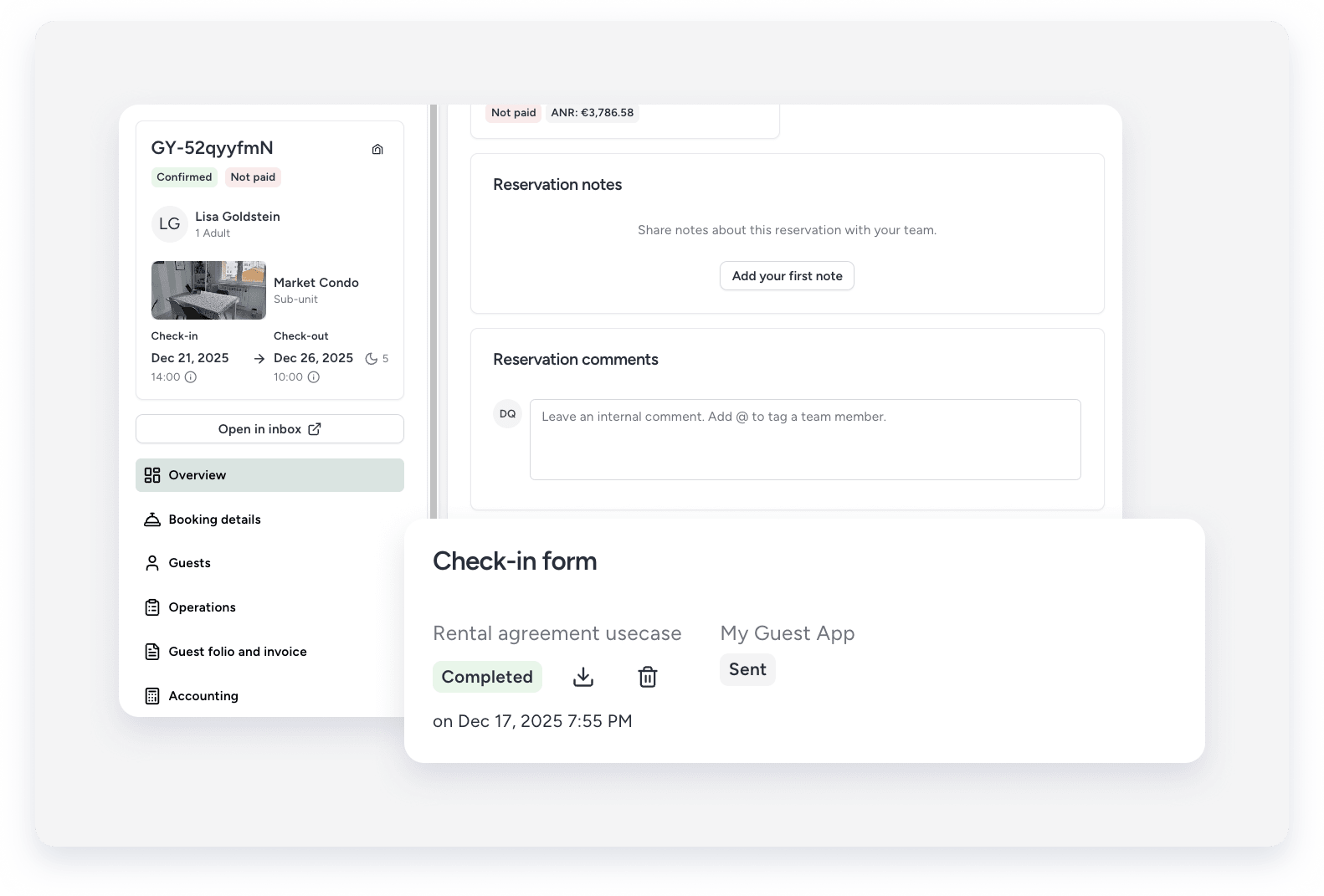
Remove and update submitted forms
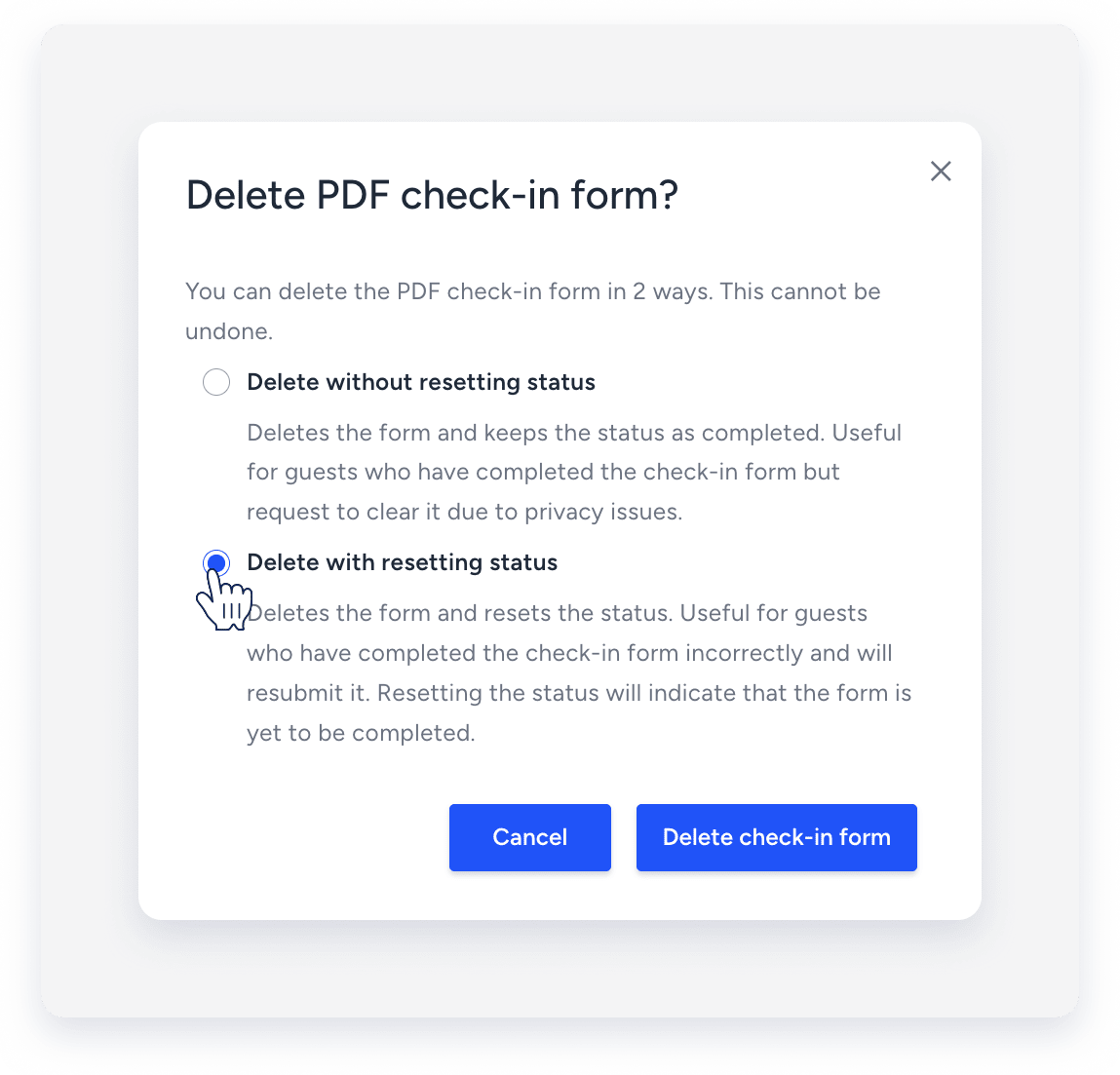
Click  to remove the PDF to protect guest privacy or to allow a guest to resubmit their information.
If a guest must update the details or the ID they submitted in the check-in form, remove the form and resend it. This allows the guest to submit updated information.
Important:
To allow the guest to resubmit their information, reset the status while deleting. The PDF status reverts from "Completed" to "Sent".
Remove attachments
Follow these steps to delete specific documents uploaded to the form.
Step by step:
- Sign in to your Guesty account.
- In the side navigation menu, click Reservation report.
- Click the relevant reservation.
- In the "Guest" section, go to "Documents".
- To the right of "Documents", click on Edit.
- Click to the right to remove the relevant attachment.
- Click Save.
Tip:
Access these documents quickly through the contact page, the inbox, or Multi-calendar widgets.
