The Multi-Calendar lets you schedule, organize, and track events across your listings, with each event shown as a block on the calendar.
Blocks indicate reserved periods of at least one day for a specific listing. Blocks can originate from various sources, including confirmed reservations, Smart Calendar Rules, owner reservations, and calendar settings like advance notice and preparation time.
Types of blocks
There are two types of blocks on the Multi-Calendar:
- Inflexible blocks: Can't be overridden and prevent complications such as double bookings.
- Flexible blocks: Can be overridden and provide more flexibility in managing reservations.
Hover over a block to view a tooltip displaying the event type in the title.
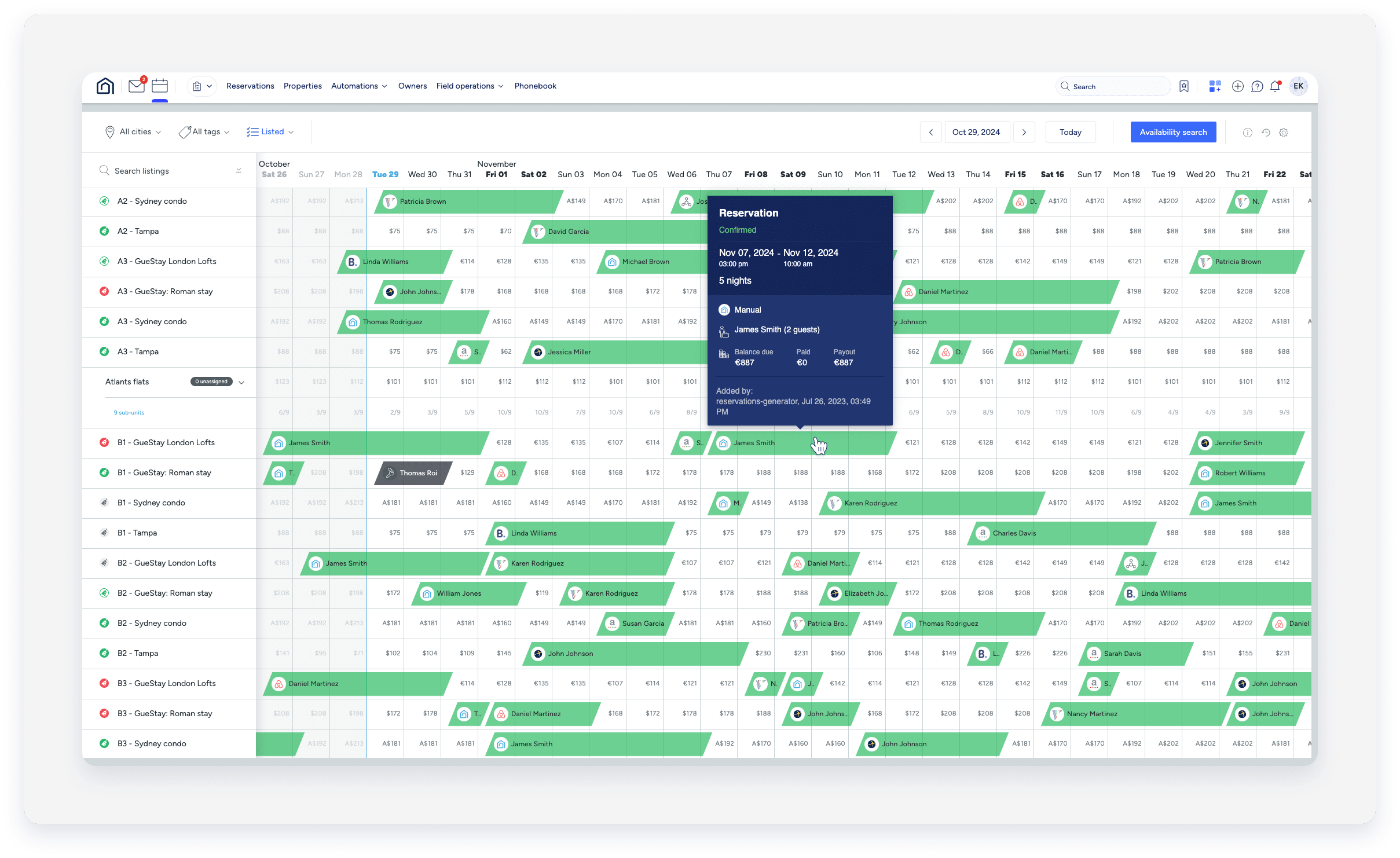
Review the types of blocks that appear on the Multi-Calendar and learn how to remove them when needed.
Inflexible blocks
These blocks can't be overridden or adjusted directly by creating new reservations.
Reservations in confirmed or reserved status
When a reservation is received, Guesty creates a block on the relevant dates, partially covering the check-in date and the check-out date, and fully covering the days in between.
No other events can be scheduled during these dates.
Tip:
Learn more about reservation statuses.
Smart Calendar Rules
After you set Smart Calendar Rules, a confirmed reservation in one listing will block the same dates in a connected listing.
If triggered, this block persists even if you move the reservation to another listing. For example, if Listing A triggers a rule to block Listing B, and you later move the reservation to Listing C, the block on Listing B remains.
Flexible blocks
Flexible blocks are time periods that restrict calendar availability but allow overrides by manual reservations or by moving a reservation from another listing.
The following are considered flexible blocks:
- Manually blocked dates
- Preparation time blocks
- Early check-in or late check-out blocks
- Dates outside the listing's booking window or availability period
- Imported events from an iCal calendar
- Dates blocked by advance notice
Flexible blocks appear as tapes colored in gray or any other color you choose. You can change the color of block types to highlight them, making them easier to track visually on your Multi-Calendar. Learn how to customize block colors.
When you create a manual reservation over a flexible block, the system notifies you of the override on the setup page. Click the dropdown arrow to read more about the override.
See which situations can prevent a listing from being available for new bookings by reviewing listing availability requirements.

Blocks for early check-in or late check-out
You can set automatic blocks for reservations with early check-in or late check-out times, or add them manually. If a reservation is received before or after the check-in/check-out times you defined, the night before or after the reservation will automatically get blocked.
How to remove blocks?
Learn below how to remove each type of block.
| Block type | How to remove |
|---|---|
| Confirmed or reserved reservations | Change the reservation to inactive status (e.g., "closed") to remove the block from the calendar, or move the blocking reservation to another listing. |
| Smart calendar rules | Can only be removed from the Multi-Calendar. |
Flexible blocks can be overridden by manually creating a reservation or by moving a reservation from another listing.
| Block type | How to remove |
|---|---|
|
Manually blocked dates Preparation time blocks |
Remove from either the Multi-Calendar or the listing's calendar. |
| Early check-in or late check-out blocks | Remove from the relevant reservation page. |
| Imported iCal events | Can only be removed from the Multi-Calendar. |
| Advanced notice blocks | Remove from the multi-Calendar, or change the availibility settings of the relevant listing. |
|
Advanced notice blocks Dates outside the booking window Dates outside the availability period |
Change the availability settings of the relevant listing. |
Do inquiries block the calendar?
Inquiries do not block the calendar.
An inquiry is used when the guest asks a general question but hasn't submitted a formal booking request. Inquiries include dates, listing names, and the number of guests, but don't have a reservation number, and don't block the calendar.
When you create a manual reservation, you can set its status to “Inquiry” if you don't want to reserve the dates. This status can be used when sending a quote.
For some channels (such as Vrbo and Airbnb), a guest can send you an inquiry that you can manually approve. The calendar is only blocked if you change the "Inquiry" status to "Confirmed".
