When you import a listing from Airbnb, you set its default minimum nights per stay. The minimum number of nights is calculated based on the guest's check-in date.
The default number of nights can be adjusted by availability tools like Guesty PriceOptimizer. You can also manually change the minimum nights for specific dates via the calendar, as described below.
You can view the current minimum nights for each date in the Multi-calendar or the listing’s calendar. The value in each cell reflects the default or any adjustment that has been made. Not all adjustments appear in the Multi-calendar.
For example:
The minimum nights per stay for each displayed date is one night.
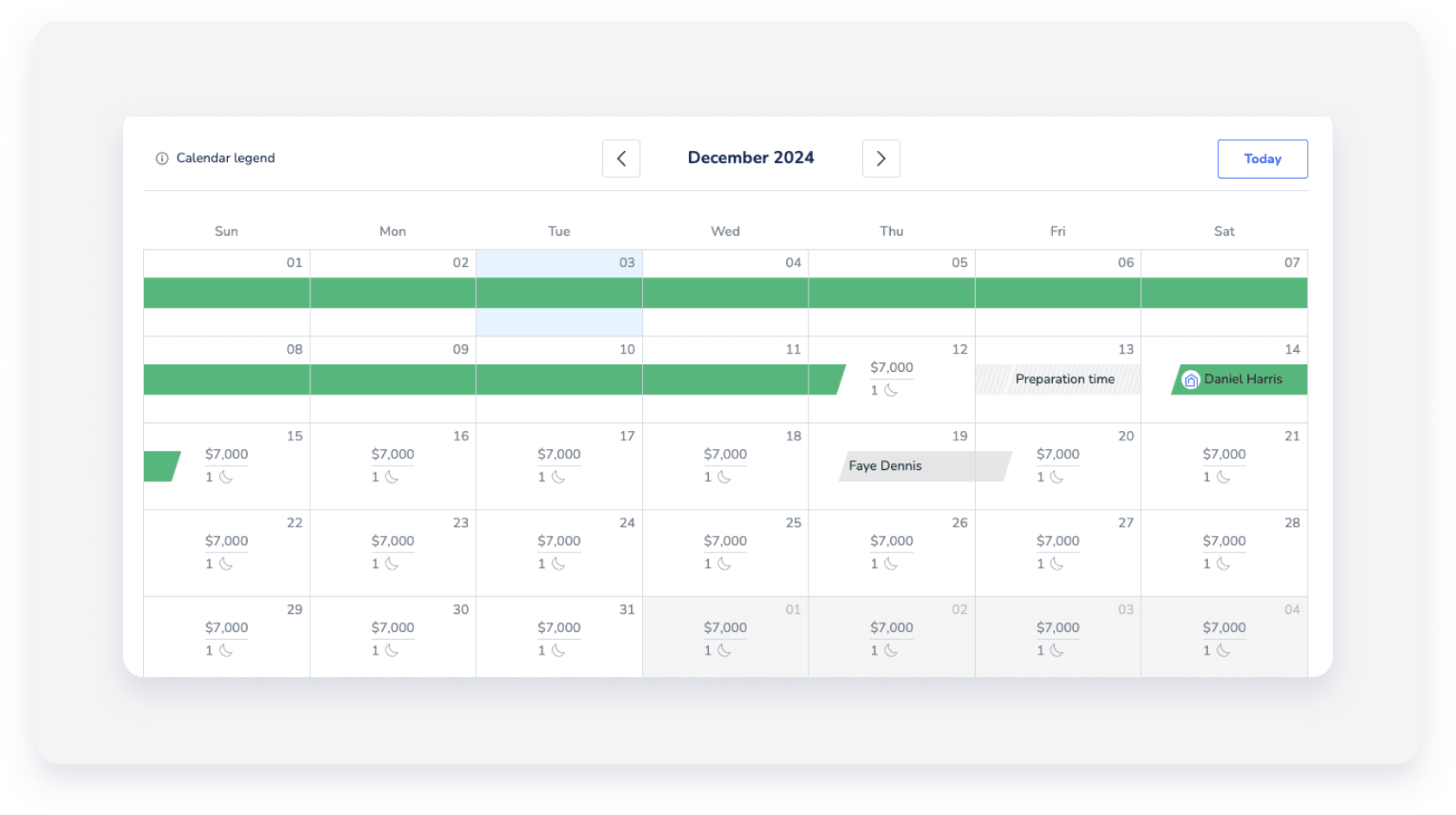
Reservations made via booking channels must adhere to the minimum number of nights for the relevant dates. However, when you create a manual reservation, your date selection ignores any applied minimum number of nights.
You can manually adjust (or "override") a listing's minimum nights for specific dates.
Learn more about using multiple tools to adjust the minimum number of nights.
Rules and limitations
- If Guesty PriceOptimizer is enabled on a listing, manual adjustments made in the calendar will sync with PriceOptimizer. Once made in the calendar, you must edit or delete minimum night adjustments from PriceOptimizer.
- The minimum number of nights you set must adhere to the connected booking channel regulations. For example, some booking channels only allow long-term stays in certain locations.
- The minimum number of nights must not be higher than the default maximum nights for the listing. If they are, the listing won’t be available for booking on your connected booking channels.
- Changes to minimum nights or nightly rates should appear immediately in Guesty. If updates don't appear, wait 10-15 minutes for potential system or network delays before contacting support.
Change a listing's minimum nights per stay for specific dates
Follow the steps below to manually change the listing's minimum nights per stay for specific dates.
Tip:
Learn how to adjust the minimum nights in bulk.
Step by step:
- Sign in to your Guesty account.
- In the side navigation menu, click
 Multi-calendar.
 - Select the dates in the row of the relevant listing.
- In the right-side panel, click Override min nights and rates.
- Check the Minimum nights box.
- Adjust the minimum number of nights value.
- Click Apply changes.
Step by step:
- Sign in to your Guesty account.
- In the side navigation menu, click
 Properties overview.
 - Click the relevant listing.
- In the submenu, click Calendar.
- Click the relevant date on the listing's calendar. Adjust the dates in the right side panel if needed.
- In the right side panel, click Override min nights or rates.
- Adjust the minimum number of nights value.
- Click Save.