While optimizing your Multi-Calendar, it's easy to drag a reservation to the wrong unit without noticing. That's a problem when a VIP guest needs a specific unit, a family books adjacent rooms, or you already sent the keys and check-in instructions. Lock a reservation's property to protect the assigned unit, so nobody can change or move it until it's unlocked.
The lock applies to the assigned property only. You can still edit the reservation's check-in and check-out dates.
While a reservation's property is locked:
- Change property is disabled
- Reassign to multi-unit is disabled
- Dragging the reservation to a different unit on the Multi-Calendar is blocked
Any of these actions displays a message that the property is locked. Unlock the property, then make the change.
Limitations
Updates made on a booking channel bypass the lock and apply to the reservation normally. The lock prevents changes made in Guesty.
Lock or unlock a reservation's property
Lock or unlock a reservation's assigned property from the reservation page.
Step by step:
- Sign in to your Guesty account.
- In the side navigation menu, click
 Reservation report.
 - Click the relevant reservation.
- In the Overview tab, in the "Property" tile, click
 and select Lock reservation to property or Unlock reservation from property from the dropdown.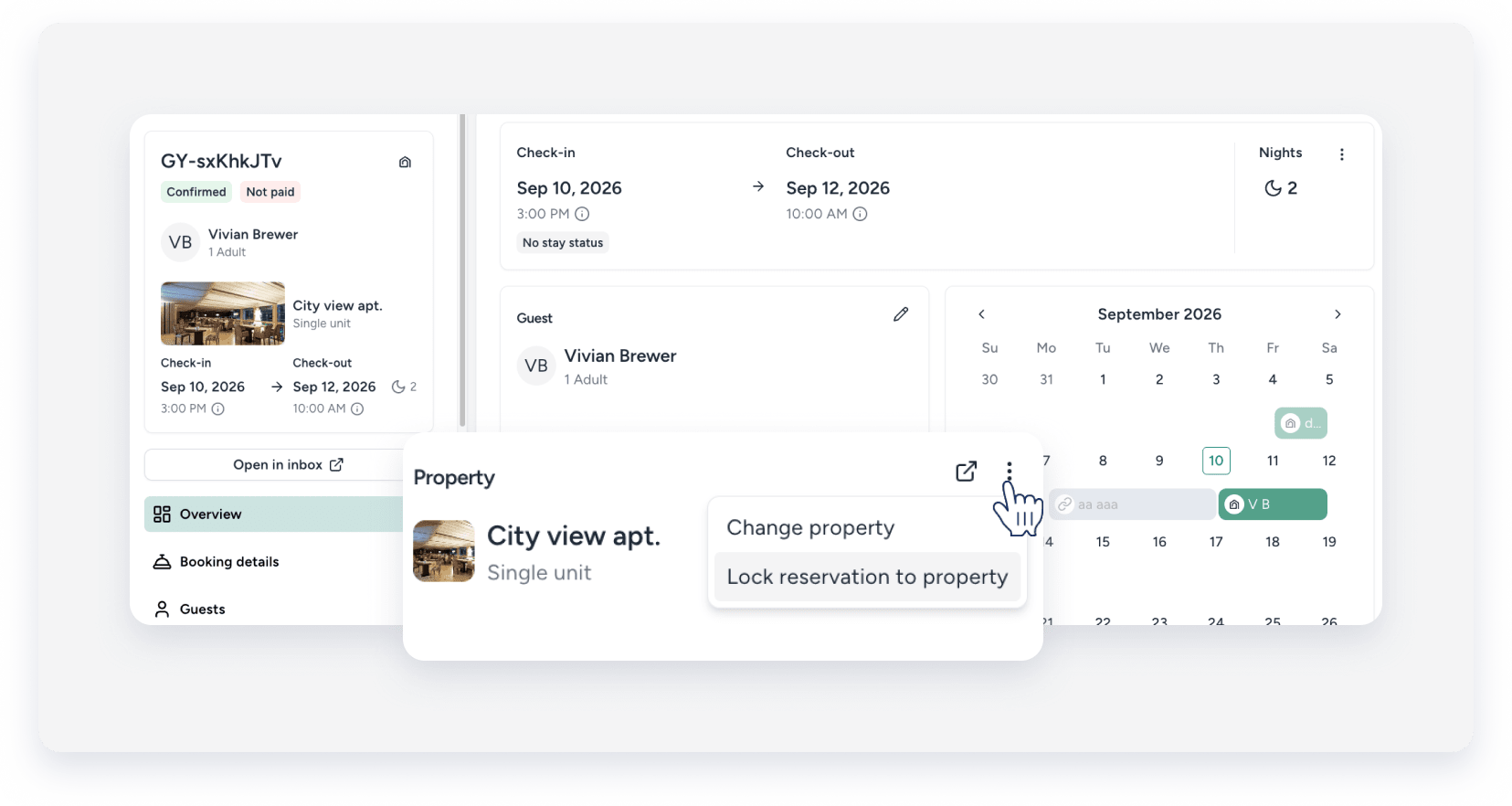
- In the pop-up, confirm the action.
Identify a locked reservation
A lock indicator appears in two places:
- In the "Property" tile on the reservation page
- In the reservation's hover pop-up on the Multi-Calendar

