Guesty provides multiple ways to stay in touch with guests and property owners. You can send messages directly from the Guesty Inbox or set up an automated message.
Choose the delivery method—such as booking channels, email, SMS, or WhatsApp—and include additional media such as images, videos, internal notes for your team, or saved replies to quickly answer frequently asked questions.
Terminology
Proxy email: A unique email address that facilitates communication between the booking channel and Guesty. Depending on the saved guest contact details, a guest may have both a proxy email and a private email address. Reservations made manually don't receive a proxy email. A proxy email consists of a string of numbers and letters.
For example: 60751cdf-d121-450336f@messages.homeaway.com
Channel-specific information
To set up guest communication with these channels, note the following:
- Messages to Airbnb guests can only be sent via Airbnb, due to Airbnb’s Off-Platform Policy, which stipulates that communication between hosts and guests must remain on the Airbnb platform.
- Sending automated messages via email isn't supported for Airbnb.
- You can send images via Airbnb from the Inbox, with the following limitations:
- Images can't contain text.
- Only one image can be sent at a time. If you send a message via Airbnb that contains more than one image, each image will be sent separately.
- You can include up to five images in automated messages.
- The total size of all images attached to a message is limited to 25MB.
- An edited or unsent message on Airbnb doesn't sync to Guesty. The original message is always displayed in the Guesty Inbox.
- Ensure Guesty is set as the connectivity provider for each of your listings.
- When a guest sends a message through the Booking.com conversation thread, Booking.com may generate a new proxy email address for that guest. In such cases, Guesty will automatically replace the existing primary email address for the guest with the newly generated proxy address. This update happens behind the scenes and doesn't require any action on your part.
- You can send up to five images at a time when sending via Booking.com from the Inbox and in automated messages.
- The total size of all images attached to a message is limited to 25MB.
Limitations
-
Timeframes
- You can only send a message to your guest within 7 days after their checkout or reservation cancellation.
- If a guest sends a message about the booking, you have an additional 14 days to respond.
- Guests can send messages about listings from the time of the booking until 66 days after check-out.
-
Links
- You can't use URL shorteners in your message (such as TinyURL).
- You can only send links and email addresses that have been approved in Booking.com's messaging security settings.
- Add
guesty.comunder "Approved links" on Booking.com's Extranet to ensure links are delivered as expected.
- To enable message syncing between platforms, add the Guesty integration email to your Vrbo account and as a contact for each of your listings.
-
You can send links to a guest from your Guesty Inbox for unconfirmed reservations.
The warning message "Some channels don't allow hosts to send links to guests before reservation confirmation" may appear because some channels don't accept emails with links. The message will still send, but if the channel doesn't accept it, the guest won't see it.
- You can send up to five images at a time when sending via Vrbo from the Inbox and in automated messages.
- The total size of all images attached to a message is limited to 25MB.
For reservations made through all other booking channels or platforms, the message will be sent to the guest's primary email address in Guesty.
Send a message from the Guesty Inbox
Follow the instructions below to send a message from the Inbox.
Step by step:
- Sign in to your Guesty account.
- In the side navigation menu, click
 Inbox.
 - In the Inbox submenu, click Guests and select All from the dropdown.
- Click the relevant message thread.
- At the bottom of the page, click Type your message here.
- Next to the Send button, select the communication method: booking channel, email, WhatsApp, or SMS.
- Via email: Customize your message if needed.
- You can include images, videos, attachments, links, or HTML in messages sent via Email.
- You can include images in messages sent via Airbnb, Booking.com, or Vrbo.
- Click Send.
Tip:
Learn how to schedule a one-time message to be sent at a later time.
Send a message using message automation
You can create a message automation, decide when you want automated messages to be sent, and define the specific conditions under which they should be sent.
Communication methods
Communicate with guests using your preferred communication method. Review the available methods below.
Via booking channel
Messages are sent to your guest's booking channel Inbox.
This method is available for Airbnb, Booking.com, and Vrbo only. For all other booking channels:
- If the primary email is a proxy email, the guest receives the message in the booking channel.
- If the primary address is the guest's private email, the message is sent to the guest's private email.
Via WhatsApp
Use the Guesty Inbox to send and receive text messages via WhatsApp once your guest has provided a phone number with their reservation. Attachments and images aren't supported.
- As per WhatsApp’s Business account rules, you can respond to a guest within 24 hours of receiving a message. The timer is reset with each new guest message received.
- Use a pre-made message template to start a conversation with a guest. Continue the conversation freely once a guest responds.
Learn more about sending WhatsApp messages via the Guesty Inbox.
Via SMS
Sending a message via SMS is useful for short or urgent messages you want your guest to see right away, or for messages that require a quick response, like a mid-stay or pre-checkout reminder. This option is available if the guest's cellphone number is saved in Guesty.
See more information and limitations about sending messages via SMS.
Via email
Messages are sent to the guest's primary email in Guesty.
- If the primary email is a proxy email, the guest receives the message in the booking channel.
- If the primary address is the guest's private email, the message is sent to the guest's private email.
Follow the instructions below to customize messages sent via Email by inserting hyperlinks, attachments, HTML code, and more.
Add media to your messages to enhance communication, provide visual instructions, highlight property features, or clarify other matters. You can add multiple images to a message; however, you can only upload one image at a time.
Step by step:
-
Above the text field, click
 .
.When setting up an automated message, this button only appears if the communication method is set to email.
- In the pop-up, click the Google Drive tab to insert an image from a URL, or Upload to use an image from your device storage.
- Click Upload.
To resize an image, click and drag the corners of the image.
You can send documents and other attachments, such as videos of up to 100MB in size.
To add an attachment to an email message, click  above the text field. Drag and drop the file into the pop-up, or browse your computer to select an existing file and upload it as an attachment. Click Upload.
The file types that are currently supported are ‘doc’, ‘gif’, ‘jpg’, ‘jpeg’, ‘mp4’, ‘pdf’, ‘png’, and ‘xls’. If an attachment isn't sent, verify the file type.
Above the text field, click </>. The source code editor appears. Enter your code and click Save.
Important:
Airbnb doesn't support HTML formatting.
To avoid formatting issues, remove empty tags and replace them as follows:
Use
<p> </p>for paragraph spacing.Use
<br>for single line breaks.
Follow the instructions below to send links to provide additional information to enhance the guest experience.
Important:
- Airbnb doesn't support clickable links.
- Some booking channels block links in messages for unconfirmed reservations to protect guest privacy and prevent external communication before confirmation.
Step by step:
-
After creating your message, select the text to function as a hyperlink.
Skip this step if you want the URL to be visible.
- Click
 .
. - Enter the link text and insert the URL.
- If you selected text from your message, it displays here. Edit the text if necessary.
- Leave the text blank for the URL text to display.
- Click Apply.
The text of the inserted link is clickable.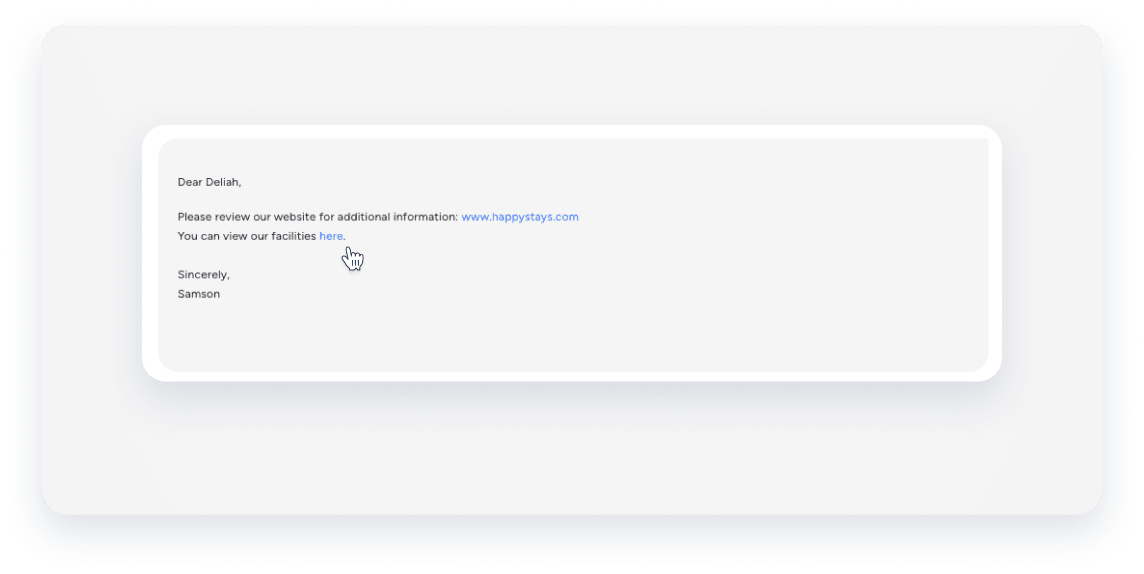
Reply to a guest
When a guest makes a reservation, the guest's details are automatically saved to the contacts list in Guesty.
Learn more about setting up contacts.
Reply to a guest or send a message via the Inbox or the Multi-Calendar. When you reply to a guest, Guesty automatically sends the message using the same method it was received. For example, if the guest sent a message via SMS, Guesty sends your reply via SMS. Select a different delivery method according to your needs.
The available message delivery options depend on the booking channel and the guest's contact details stored in Guesty. For example, if the contact details include an email address and a cellphone number, you will see the following options:
If there are no contact details for a guest, you can't send a message. The only available option is "Internal note".
