When you import a listing from Airbnb, you set its base price per night. The base price can automatically be adjusted by pricing tools like third-party pricing tools. You can also manually change the base price for specific dates via the calendar, as described below.
When a base price is adjusted, it becomes a “nightly rate”.
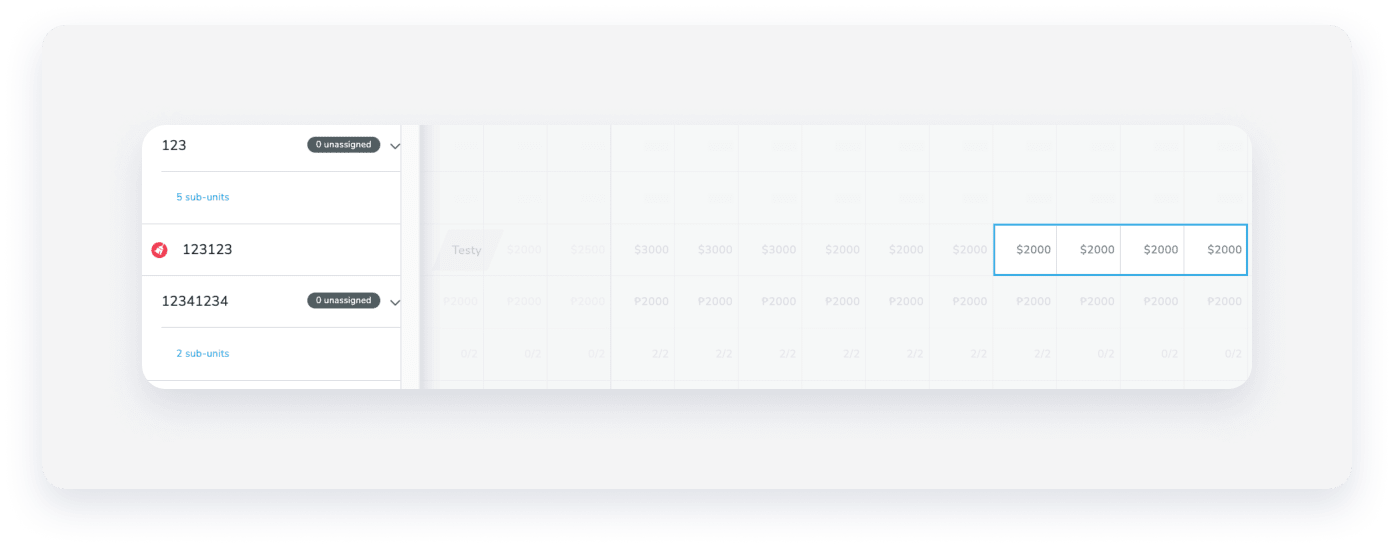
You can view the current base price for each date in the Multi-calendar or the listing’s calendar. The value in each cell reflects the default or any adjustment that has been made. Not all adjustments appear in the Multi-calendar.
For example:
The price per night for each displayed date is 2000 USD.
Learn more about using multiple tools to adjust the price per night.
Limitations
- A listing’s nightly rate can't be lower than $10 USD.
- Nightly rates can't be duplicated to another listing.
Adjust the price per night via the calendar
Follow the instructions below to manually adjust the listing's price per night for specific dates.
Tip:
Learn how to adjust the price per night in bulk.
Follow the steps below to adjust the price per night via the Multi-Calendar. Use this method to see multiple properties at once while you work.
Step by step:
- Sign in to your Guesty account.
- In the side navigation menu, click
 Multi-calendar.
 - Select the dates in the row of the relevant listing.
- In the right-side panel, click Override min nights and rates.
- Check the Nightly rate box.
- Adjust the nightly rate and click Apply changes.
Follow the steps below to adjust the price per night via the listing's monthly calendar. This is the best way to focus on a single property's availability and pricing.
Step by step:
- Sign in to your Guesty account.
- In the side navigation menu, click
 Properties overview.
 - Click the relevant listing.
- In the submenu, click Calendar.
- Click the relevant date on the listing's calendar. Adjust the dates in the right side panel if needed.
- In the right side panel, click Override min nights or rates. Adjust the Nightly rate value.
- Click Save.
