Manage automated messages for specific guest communications directly from the Guesty Inbox and the Multi-Calendar, alongside the relevant conversations and dates. To access and manage automated messages, open the Automated messages widget. Click  Inbox or
  Multi-calendar in the side navigation menu, and in the widget submenu, click
  .
.
Understand the widget
The widget lets you view and control automated messages for a specific reservation.
Toggle Guest auto messages on or off at the top to enable or disable the feature for the reservation, or use the individual toggles to disable specific messages.
If a reservation has no automated messages, the top toggle stays off. It activates automatically when you add a message.
The widget displays the following information:
- Automation name.
- Trigger condition.
- Communication method.
- Scheduled date and time.
- Expiration date and time.
- Message status (conditions met or pending).
- Error messages.
Messages are organized under two tabs: Scheduled and History.
Scheduled
This tab lists messages queued to send. Messages awaiting conditions display a "Condition(s) pending" label.
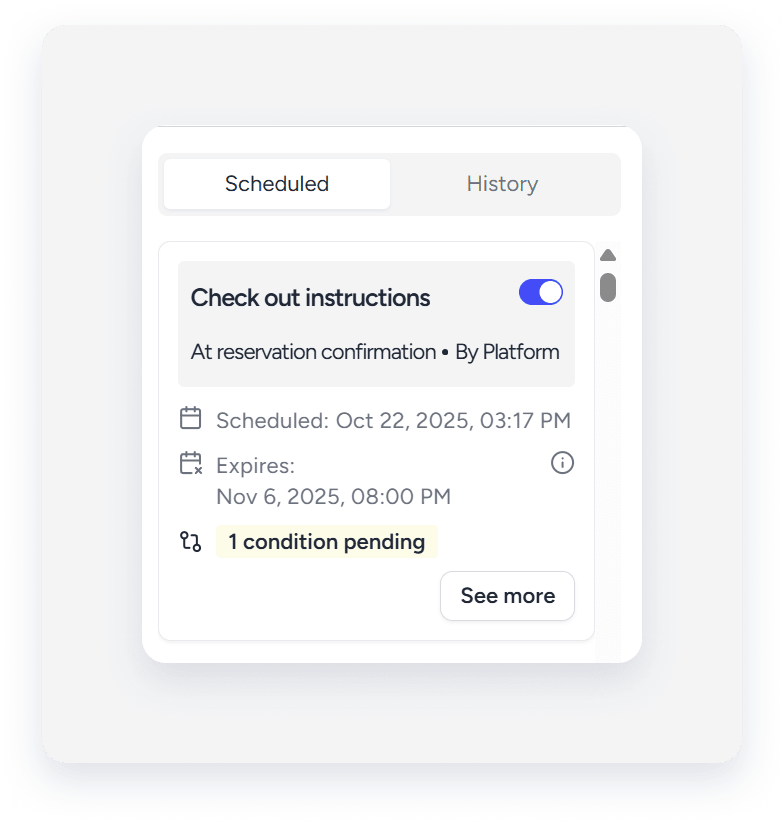
History
This tab shows messages that have already been processed:
- Sent messages are marked with
 .
. - Unsent messages are marked with
 and show the failure date and reason.

Message details
Click See more to view the automation name, conditions, and status.

Note:
Guesty checks sending conditions right before the message is scheduled to send. The status updates to "Met" only during that final check, even if the condition was met earlier.
Manage automated messages
From the widget, you can also:
-
View or edit the automation. Click
 to open the automation's configuration.
 -
Copy a message to resend it. Click
 to copy the message content, then paste it as HTML for email, or as free text for SMS and booking channel messages.
 - Preview messages with or without variables. Toggle Show variable values on to see the final rendered message.
- Send a message immediately. Click Send now to send right away. This one-time action cancels the original scheduled send. The user who clicked Send now is recorded in the History tab.
Understand message timing and expiration
If a message's scheduled time passes before the reservation is confirmed, it sends immediately upon confirmation. For example, a message scheduled to go out one day before check-in sends immediately if the reservation is confirmed only eight hours before check-in.
Automated messages expire as follows:
- Check-out-related messages expire 7 days after their scheduled time.
- All other messages expire at check-out.
Learn how to disable automated messages for a guest reservation.