When you link or publish your Booking.com listings to Guesty, the associated data will be synced between the two platforms according to the sync connection type.
- Published listings use a full sync connection type by default.
- Linked listings default to rates & availability sync connection type.
You can switch between these connection types according to your needs.
Before you begin
Before you can change the connection type from Rates & availability to Full sync, add the property’s size on Booking.com’s extranet.
Limitations
- Switching from rates & availability to full sync removes existing settings configured on Booking.com.
- You can't switch the connection type if the hotel ID has more than one room ID connected in Guesty.
Follow the steps below to switch the connection type of a listing.
Step by step:
- Sign in to your Guesty account.
- In the side navigation menu, click
 Channels to open the dropdown menu.
 - Select Booking.com.
- Locate the relevant account.
- Under "Connection type", hover over it's connection type and click
 .
. - In the right side panel, select the connection type you'd like to set for the listing.
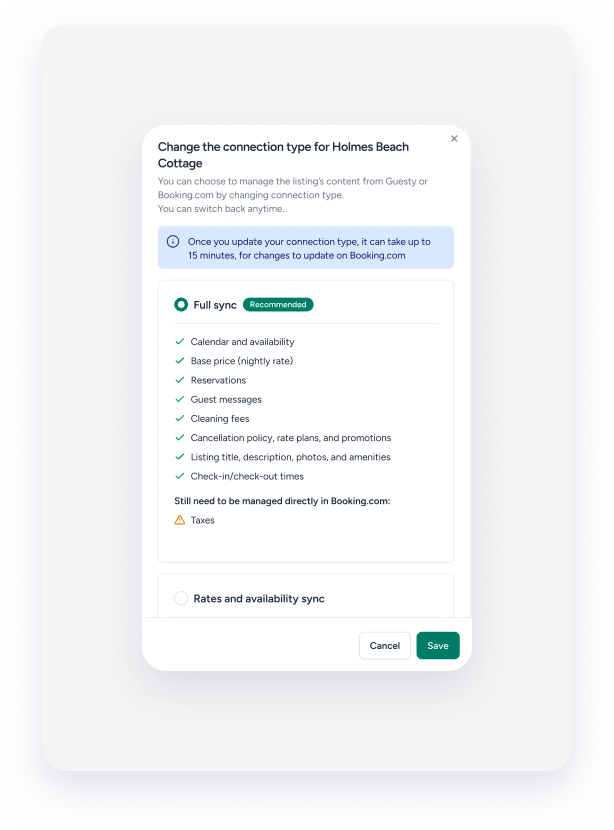
- Click Save.
- Click Change connection type.
The text will change to "Processing" under "Connection type" on the Booking.com integration page in Guesty. Once the change is complete, the text will reflect the altered connection type, with a green  next to it. It may take up to 4 hours to switch the connection type.
Learn more about troubleshooting connection types errors.
