Prevent double bookings and maximize visibility by setting up properties as combos or variants. These structures help automate your workflow by syncing availability between linked properties automatically. When a guest books one unit, the others block instantly.
Combo properties
A property that is a combination of two or more existing properties. Use this unified structure to allow guests to book either the entire unit or the individual linked properties separately.
|
For example: Link separate properties for the first and second floors to the property for the whole villa, so that guests can book each floor individually, but also the villa as a whole. |
Guesty automatically syncs availability to prevent conflicts. A reservation on a linked property blocks the main property, and conversely, a booking on the main property blocks all the linked properties.
Billing for combo properties applies only to the individual linked properties that make up the combo (for example, the floors and not the whole villa). The combo property itself is not billed.
Property variants
Link multiple properties as variants to a single property to form a group of duplicate properties. Maximize your property's visibility and revenue by targeting different audiences.
|
For example: Promote the property as a family unit in one property and a couple's unit in another. |
A reservation or block on any variant blocks availability on all others. You are billed for a single property only, regardless of the number of variants linked to it.
Manage combo properties
Follow the steps below to manage your combo properties.
Configure a combo property
Follow the steps below to configure a property as a combination of two or more existing properties.
Step by step:
- Sign in to your Guesty account.
- In the side navigation menu, click
 Properties overview.
 - Select the main property that represents the property as a whole.
A property variant can’t be assigned as part of a combined property. - In the submenu, click Settings.
- Under the “Combo properties” section, click Set up combo properties.
- Click Link properties and in the pop-up, select properties or search for them by name.
- At the bottom-right, click Done.
- At the top-right, click Save.
- In the pop-up, click Save.
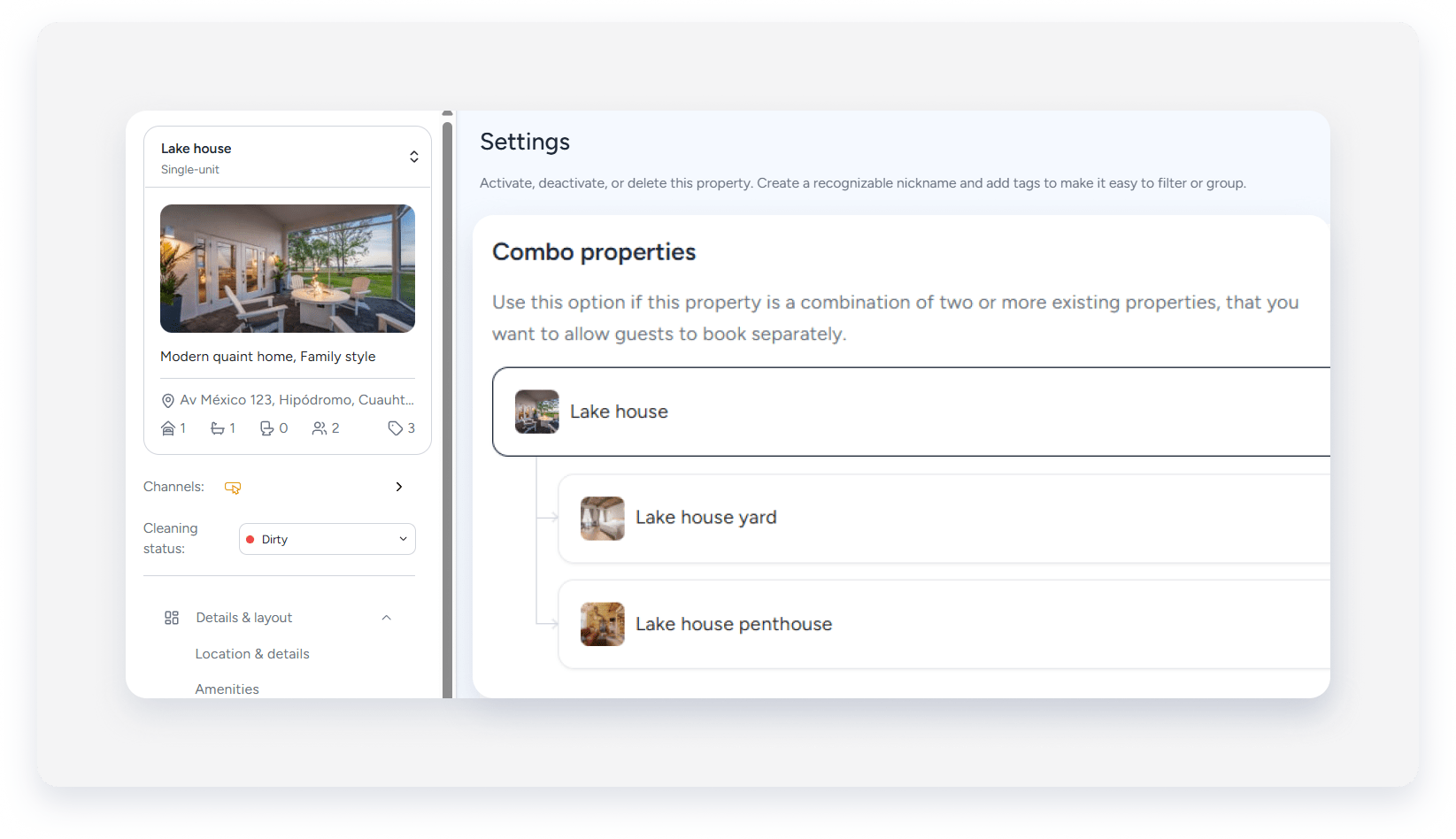
Link or unlink properties
Navigate to the main property and follow the steps below to edit the properties linked to it or to remove them.
Step by step:
- Repeat steps 1-5 above.
- Next to “Combo properties”, click Edit.
- To open the selected property’s page: Hover over a property’s name and click
 .
. - To remove a linked property: Click Unlink, and in the pop-up, click Unlink property. At the top-right, click Save.
- To add more properties: Click Link properties.
- To open the selected property’s page: Hover over a property’s name and click
- At the top-right, click Save.
Deactivate or delete a combo property
You can deactivate or delete the main property or any of the properties linked to it. Keep the following implications in mind:
- Deactivating or deleting the last active property starts billing for the combo.
- Deleting a combo unlinks any linked properties.
- Deleting the last linked property causes the combo structure to be removed. Additional billing may occur.
Manage property variants
Follow the steps below to manage your property variants.
Configure a property variant
Follow the steps below to link property variants to create a group of duplicate properties.
Step by step:
- Sign in to your Guesty account.
- In the side navigation menu, click Properties overview.
- Select the relevant property to be the main property you want to assign variants to.
A combo property or an existing variant can’t be assigned as a main variant. - In the submenu, click Settings.
- Under the “Property variants” section, click Set variants.
- Click Link properties.
- In the right side panel, select properties or search for them by name.
- At the bottom-right, click Done.
- At the top-right, click Save.
- In the pop-up, click Link variants.
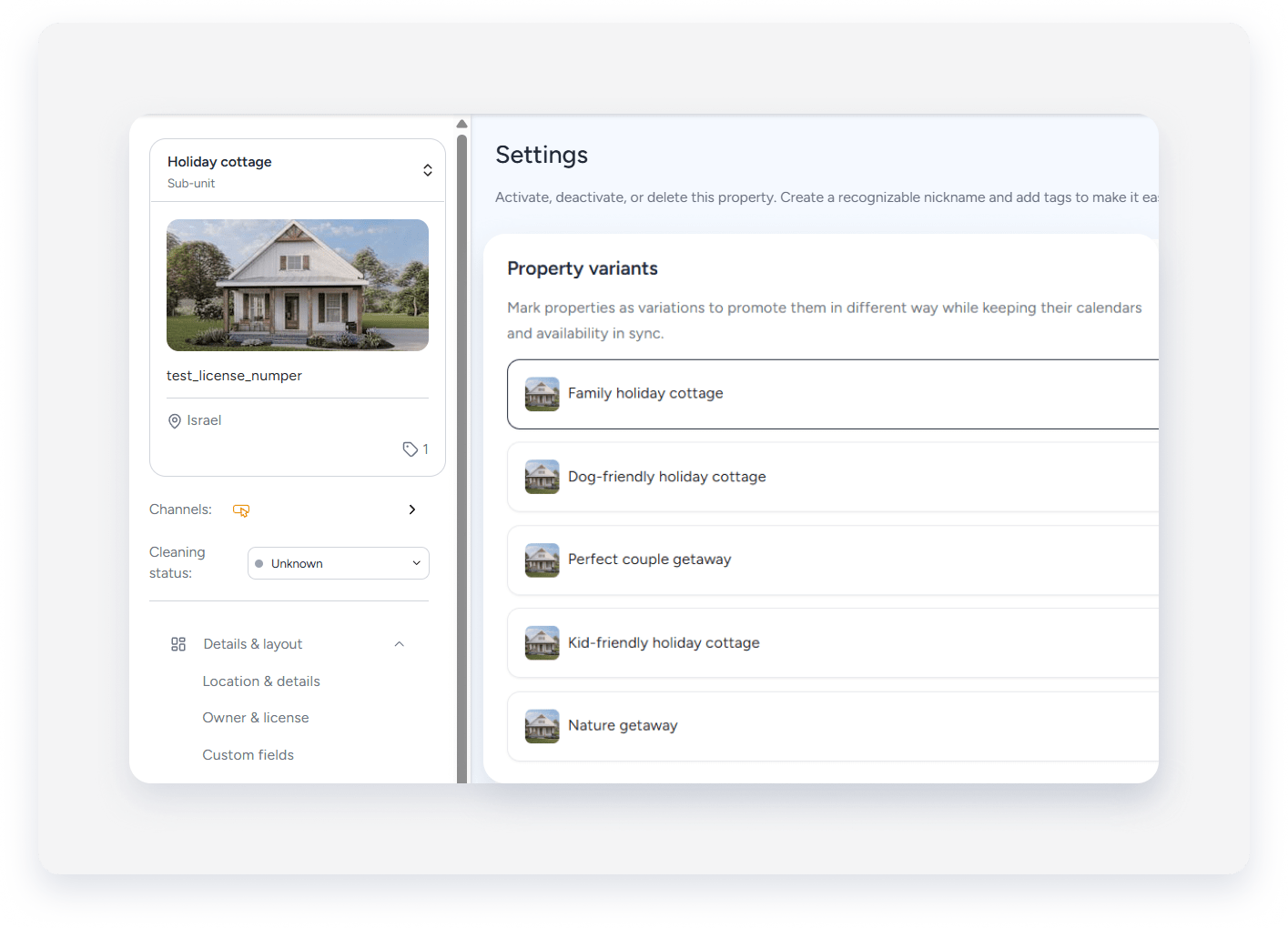
Link or unlink variants
Navigate to the main property and follow the steps below to edit the variants linked to it or to remove them.
Step by step:
- Repeat steps 1-5 above.
- Next to “Property variants”, click Edit.
- To open the selected property’s page: Hover over a property’s name and click
 .
. - To remove a variant: Click Unlink, and in the pop-up, click Unlink property.
- To add more properties: Click Link properties.
- To open the selected property’s page: Hover over a property’s name and click
- At the top-right, click Save.
Deactivate or delete a property variant
You can deactivate or delete the main property or any of its variants.
