For smooth and effective communication with guests, easily confirm through Guesty that your automated messages have been dispatched successfully for each reservation.
Follow the instructions below to confirm the status of an automated message.
Step by step:
- Sign in to your Guesty account.
- In the side navigation menu, click
 Inbox.
 - In the Inbox submenu, click Guests.
-
Select the relevant conversation thread.
If they have more than one reservation, you'll see a dropdown arrow next to the confirmation code in the
 inbox widget on the right. Click the arrow to select the relevant reservation from the dropdown menu.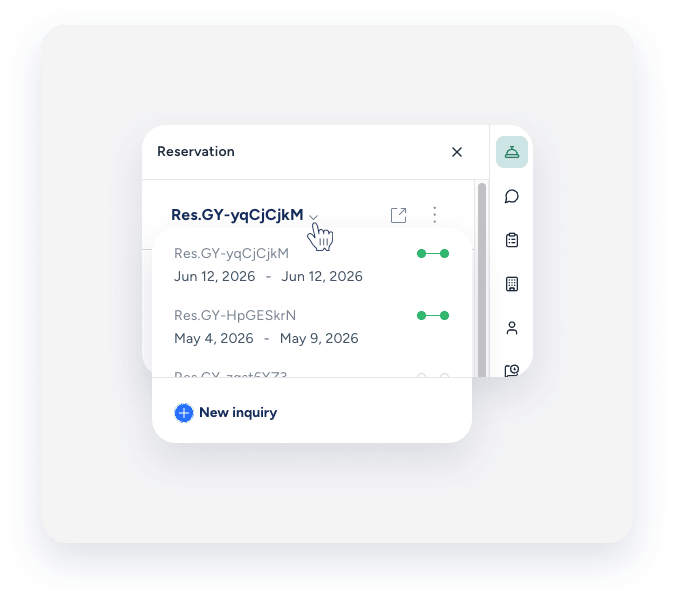
- In the inbox widget submenu, click
 .
. - Under "Guest auto messages", select History.
- A checkmark indicates the message was sent successfully.
- An X indicates the message failed to send. Refer to our troubleshooting guide.
Tip:
Learn how to turn off a specific message that wasn't sent.