Set up an email address so team members can reply to automated messages. Reply behavior differs depending on who receives the message. Users and contacts follow one flow, while guest communications follow another.
Replies to users and contacts
You can set up an email address so that team members can reply to automated messages sent to users or contacts. Follow the steps below to set up the specific email address for these replies.
Important:
Replies sent to a specified email address won't appear in the Guesty Inbox. If you use Guest Communication Services, the team receives the reply and continues the conversation via this email address.
Step by step:
- Sign in to your Guesty account.
- In the side navigation menu, click
 Operations to open the dropdown menu.
 - Select Automated messages.
- Next to the relevant message automation, click
 , then select Edit.
 - Click the relevant message to open it.
This feature only applies to messages sent via email. If needed, under "How will it be sent", select Via email. - Under "Who will receive it", select User from the dropdown menu, and select the relevant team member.
- To add or update the reply email address, uncheck the Recipients will not be able to reply to this message box.
- Under "Add the email address to which you would like to receive the recipient's reply", enter the email address you want to receive responses to.
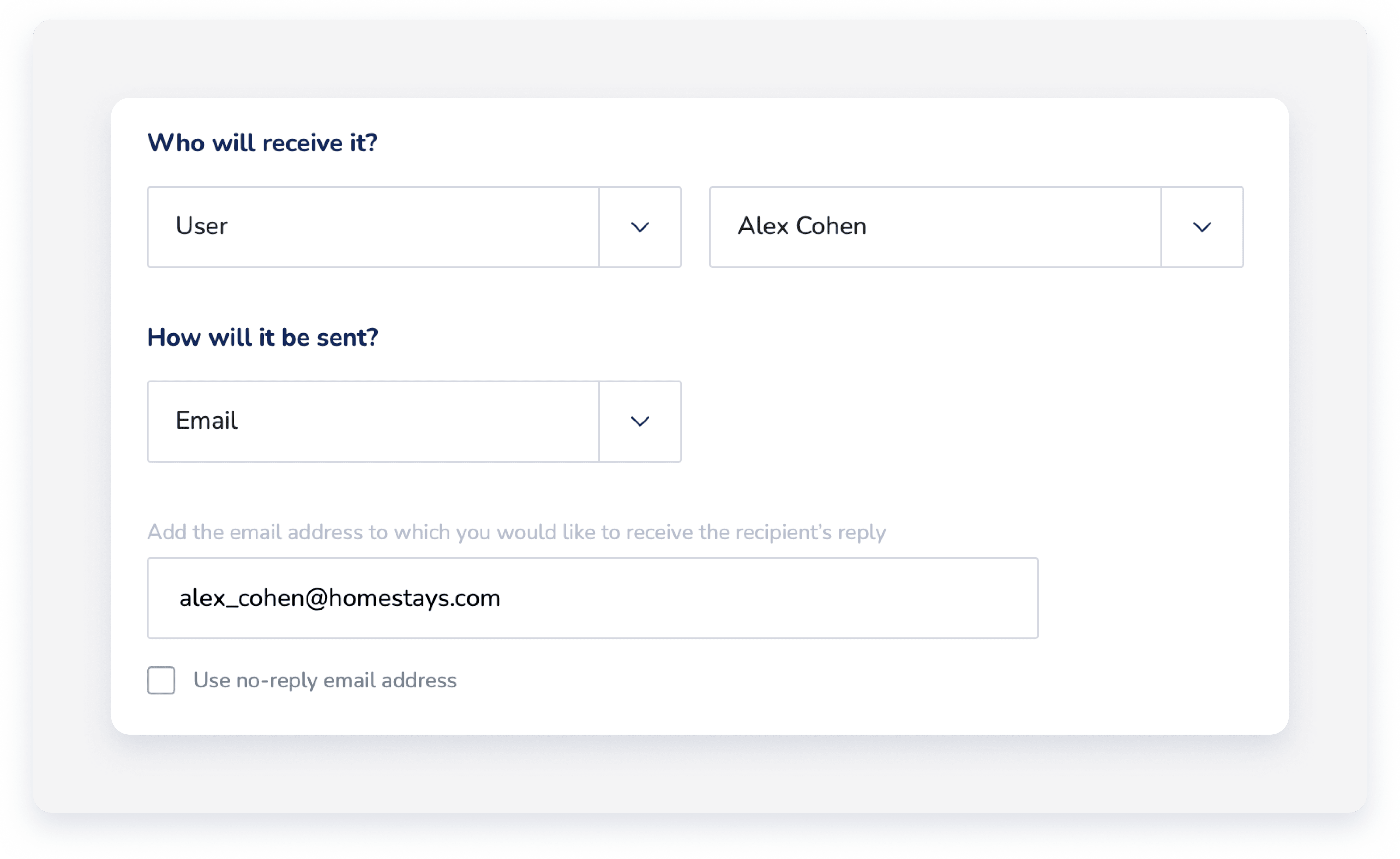
- Click Save.
- Click Save again.
- Give the automation a name if applicable and verify the sending conditions are correct, then click Add message automation.
- In the pop-up message, click Apply changes.
Replies to guest communications
Guest replies to email messages are always available in the Guesty Inbox, where the conversation can be continued. In addition, for direct reservations, if an email forwarding address isn't configured, Guesty automatically forwards email notifications for guest replies to the first user created on the account.
