Guesty provides tools to help you track changes made over time. Use the activity log to review updates and keep full control over your automations.
If you need to check which user made changes to your message automation and automated messages, the activity log provides you with all the information you need.
You can view:
- The timestamp for the changes
- The "old" and "new" versions of the automated message
- The user who performed the changes
The activity log displays updates like:
- Who created a message automation
- Who edited an automated message
- Who activated or deactivated an automated message
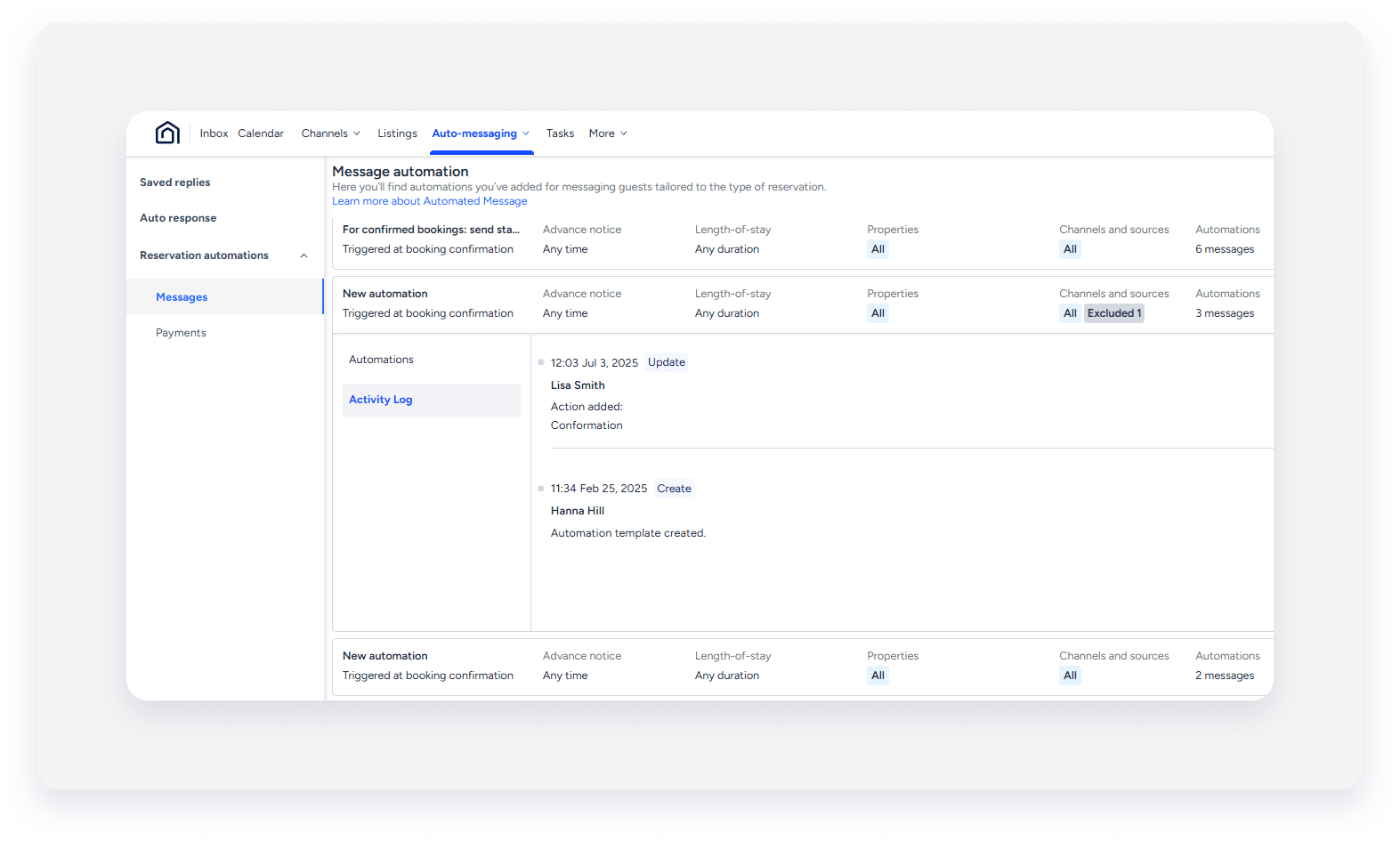
View the activity log
Follow the steps below to view the activity log for your message automations.
Step by step:
- Sign in to your Guesty account.
- In the side navigation menu, click
 Operations to open the dropdown menu.
 - Select Automated messages.
- Click the message automation you'd like to view.
- In the submenu, click Activity log.
- Scroll down to see the entire activity log.
