Adding photos of your listing in Guesty can provide a clear and appealing visual representation of the property, attracting potential guests to book. The photos will be synced and displayed on the listing's page in the connected channel.
Follow the instructions below to upload new photos, assign them to rooms, and add their captions.
Note:
It can take up to 24 hours for new photos to sync with a booking channel.
General requirements
If you need to manage them via Guesty, ensure they meet the following general requirements. See channel-specific requirements below.
File type
Supported file types include:
- JPEG
- JPG
- PNG
- GIF
Photo resolution
The recommended resolution is 1920x1080 pixels for a full HD display. The minimum resolution supported by Guesty is 1280x720 pixels.
Important:
Guesty compresses photos to fit the channel-specific resolution requirements.
File size
You can add photos to Guesty with a file size of up to 25MB each.
Tip:
Use these free third-party image optimization tools to compress your images:
Number of photos
Upload at least 10 photos per listing. This ensures the listing connects to all booking channels.
Channel-specific requirements
Review the unique photo requirements and guidelines for each connected booking channel.
Airbnb
Manage photos in Guesty. These overwrite photos on Airbnb.
Assign specific photos to rooms within the listing to sync them to the "Where you'll sleep" section on Airbnb.
- File size: Maximum 4 MB. Larger files prevent the listing from connecting.
- Photo tour:: Check the requirements for Airbnb's photo tour feature.
Booking.com
Orientation: Landscape (horizontal) images are required.
Learn more about Booking.com's photo requirements.
Vrbo
It can take up to 24 hours for photos to sync between Guesty and Vrbo.
Manage photos directly in Vrbo if you have a limited sync connection type. Manage photos in Guesty if you have a full sync connection type.
Follow Vrbo's photo guidelines.
- File size: Maximum 20 MB.
- Supported formats: JPEG/JPG, PNG, or GIF.
- Desired quality: Sharp and well-lit photos.
- Orientation: Horizontal (landscape) display.
- Duplicate images: Vrbo rejects listings with duplicate images.
- Area maps
- Black and white images
- Blank, duplicate, or near-duplicate photos
- Blurry photos (e.g., avoid Portrait Mode)
- Captions violating the Partner Provided Content Policy
- Close-ups of a plant
- Collages of multiple photos or multiple listings
- Copied from another listing
- Copyrighted material
- Irrelevant subjects or scenes
- Inappropriate content
- License plates
- Portrait orientation
- QR codes
- Non-photo content (documents, certificates, illustrations, posters)
- Any text overlays (URLs, contact info)
- Watermarks (logos or borders)
Add new photos
Step by step:
- Sign in to your Guesty account.
- In the side navigation menu, click
 Properties overview.
 - Click the relevant listing.
- In the left side panel, click Marketing, then select Photos.
- To the right of “Photo gallery”, click Edit.
-
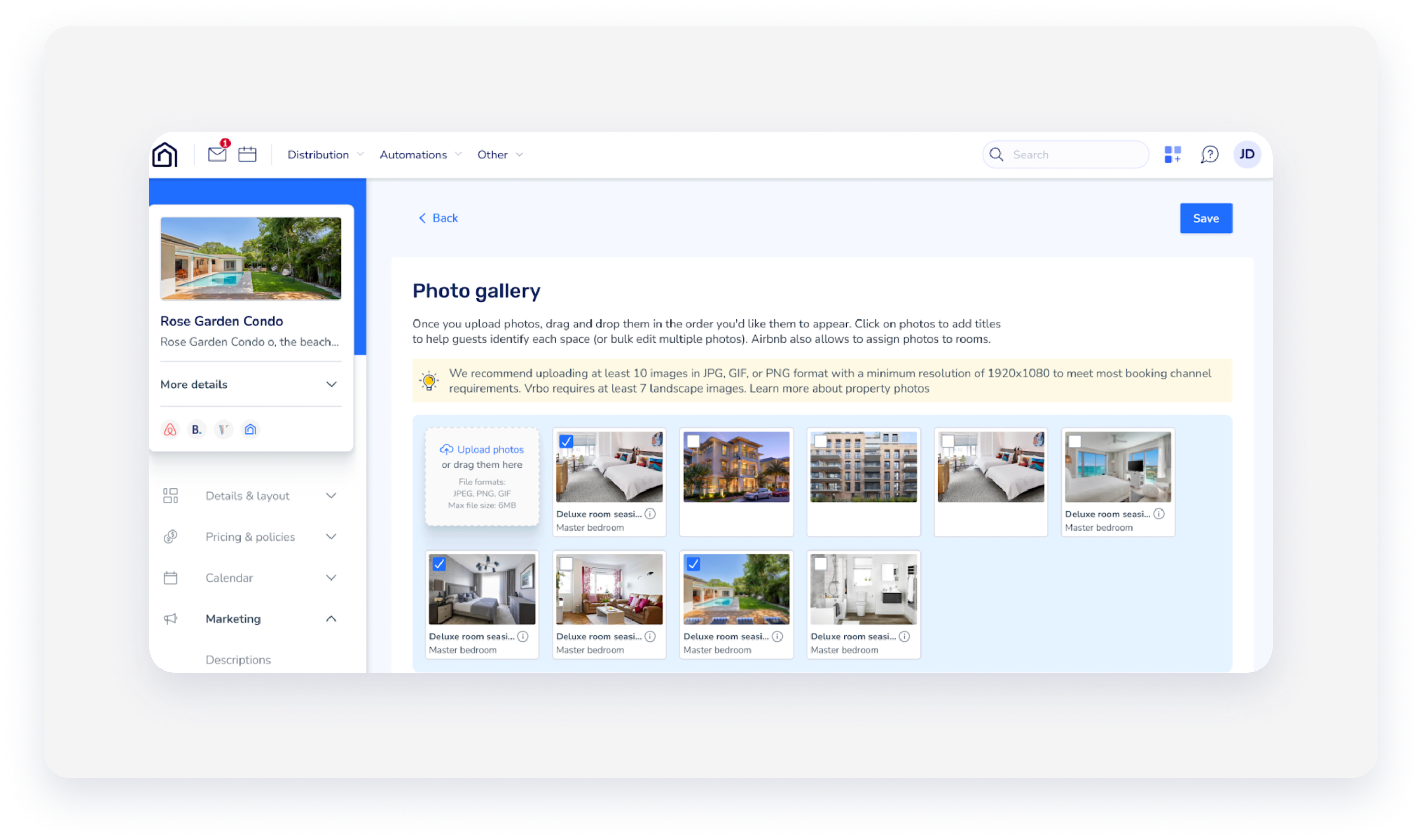
Click Upload photos or drag and drop a file into the photo gallery.
- Click Save.
Add captions and assign photos to rooms
Rooms are configured in the property's room arrangement.
Captions and room assignments don't sync to the Booking Engine or Booking.com. Vrbo captions have a 400-character limit.
Step by step:
- Repeat steps 1-4 above.
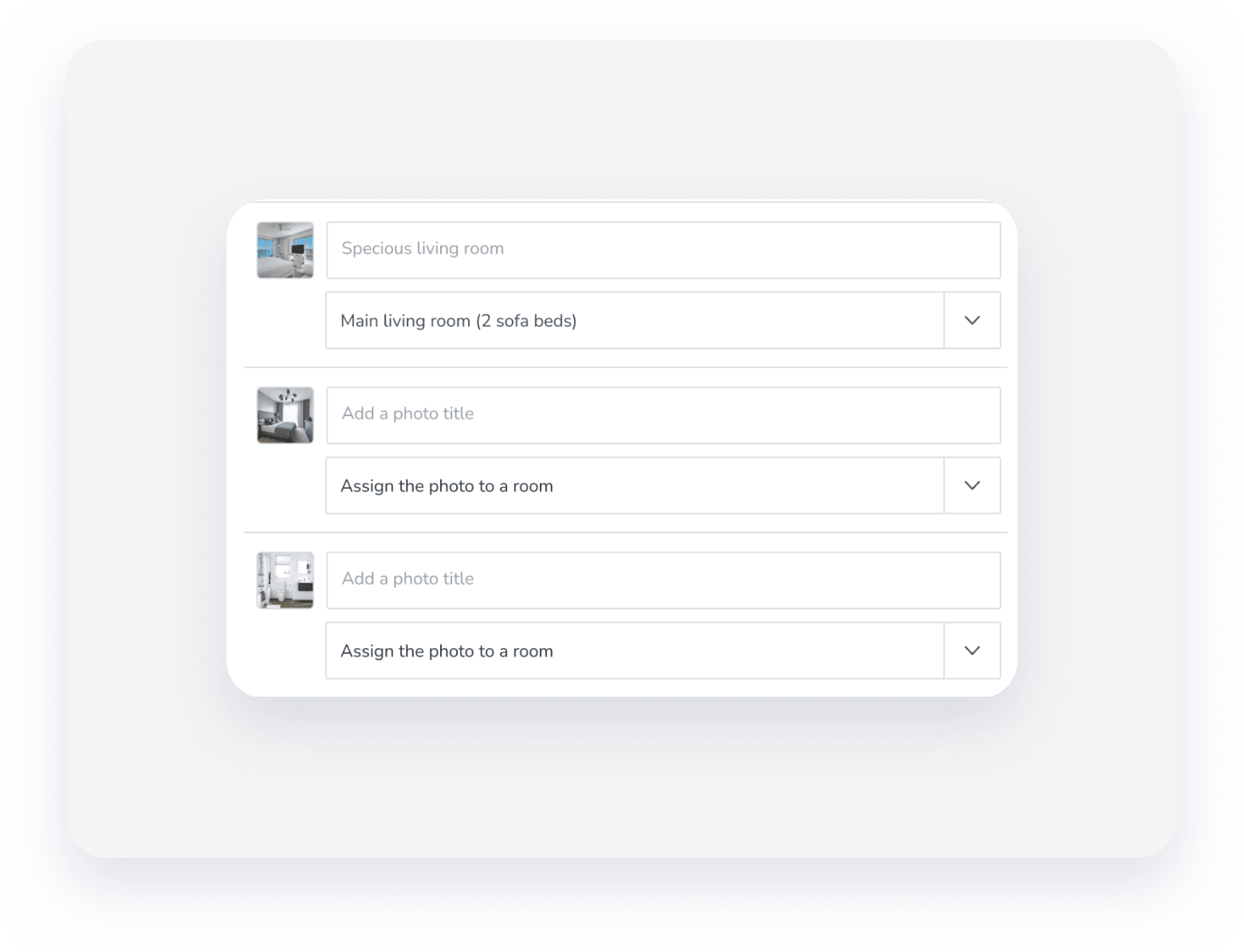
- Check the boxes for the relevant photos and click Bulk edit. Click a single photo to select it.
-
In the edit screen, fill in a caption for the photo in the text box and select the relevant room from the dropdown menu.
- Click Save.
Change the order or display
The photo in the top left of the gallery is the listing's primary photo in Guesty. This photo will be the listing’s cover photo on the Airbnb platform. Click and drag photos to reorder them.
The order of display you set in Guesty won't be synced to Airbnb.
Delete a photo
For listings connected to Airbnb, you can delete up to 100 photos per week. If you exceed this amount, the syncing will fail.
Step by step:
- Repeat steps 1-5 in the "Add new photos" section above.
- Check the boxes for the relevant photos and click Delete.
