The billing pages give you a complete view of your account's financial activity, from upcoming charges and payment methods to historical invoices and credits. To access your billing pages, sign in to your Guesty account. In the side navigation menu, click  Account to open the dropdown menu and select Billing.
Billing pages
Each tab is designed to help you manage a specific aspect of your billing. Review the pages below to learn what information they display and what actions they enable.
Overview
The Overview tab provides a snapshot of your account's billing status. At the top, you can see:
- The next invoice amount to be billed
- The date your next invoice will be sent and the payment method charged
- The last invoice amount, date, and status
If any payments have failed, they'll be flagged in red along with the relevant invoice number.
Note:
The amount shown for your next invoice might not be final, as some products are billed based on usage.
Below this summary, the "My plan" section lists all products associated with your account and how each one is billed. Click View details on any product to see specific information, including billing frequency, applicable fees, and active listings.
At the bottom of the tab, you can view one-time fees and your company information.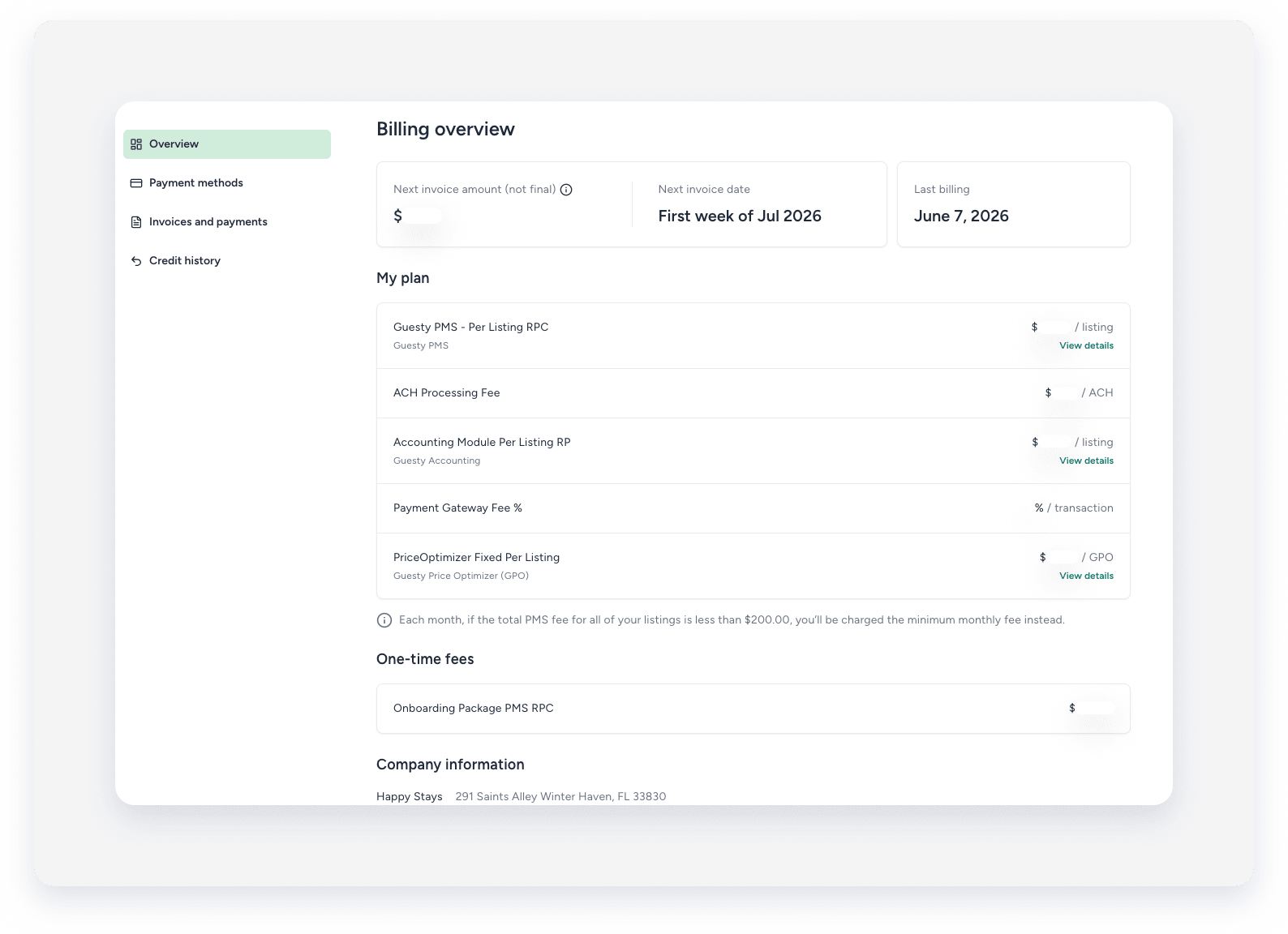
Payment methods
In the Payment methods tab, you can replace your payment method.
Invoices and payments
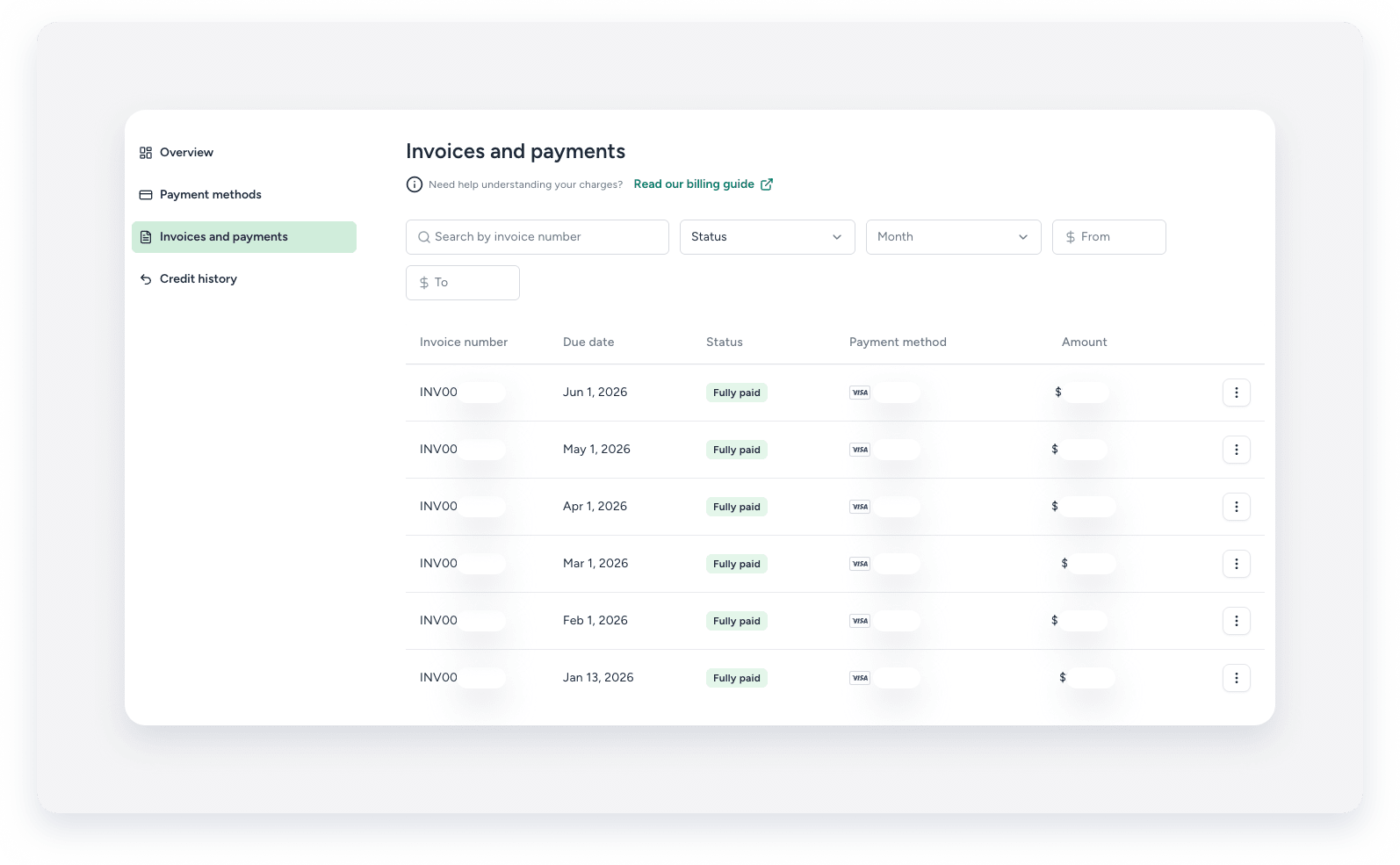
In the Invoices and payments tab, you can review, download, and send your billing history and invoices. Refunded invoices are also displayed here.
For each invoice, you'll see:
- Invoice number
- Due date
- Status
- Payment method
- Amount
To pay an outstanding invoice, click Pay next to it. You'll be able to review the invoice number and amount in a pop-up before confirming the payment.
To find a specific invoice quickly, use the search bar or filter by status, month, or amount range (by setting a "From" and "To" value).
Credit history
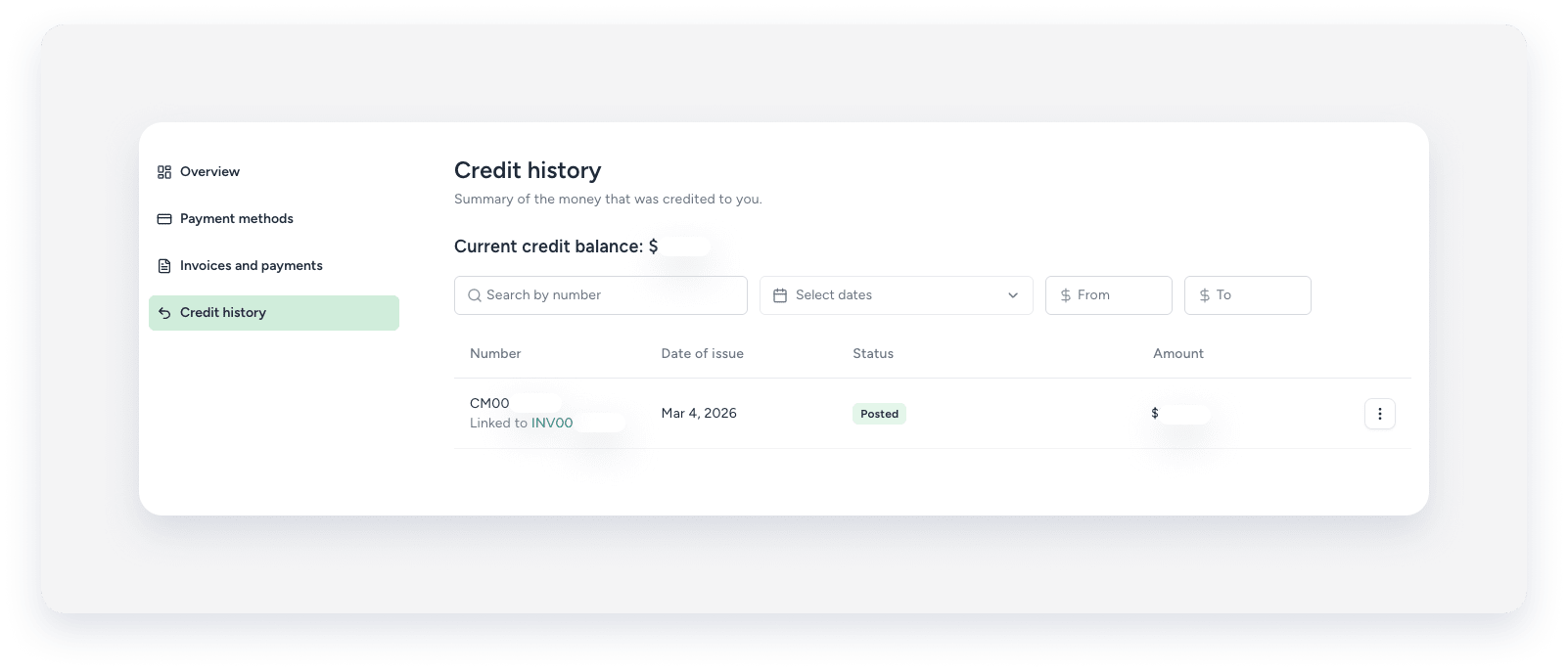
In the Credit history tab, you can view, download, and send any credits issued to your account.
Each entry displays:
- Credit number
- Date of issue
- Status
- Amount
Some credits include a link to the original invoice; click the link to view it.
You can search for a specific credit or filter the list by month or amount range (by setting a "from" and "to" value).