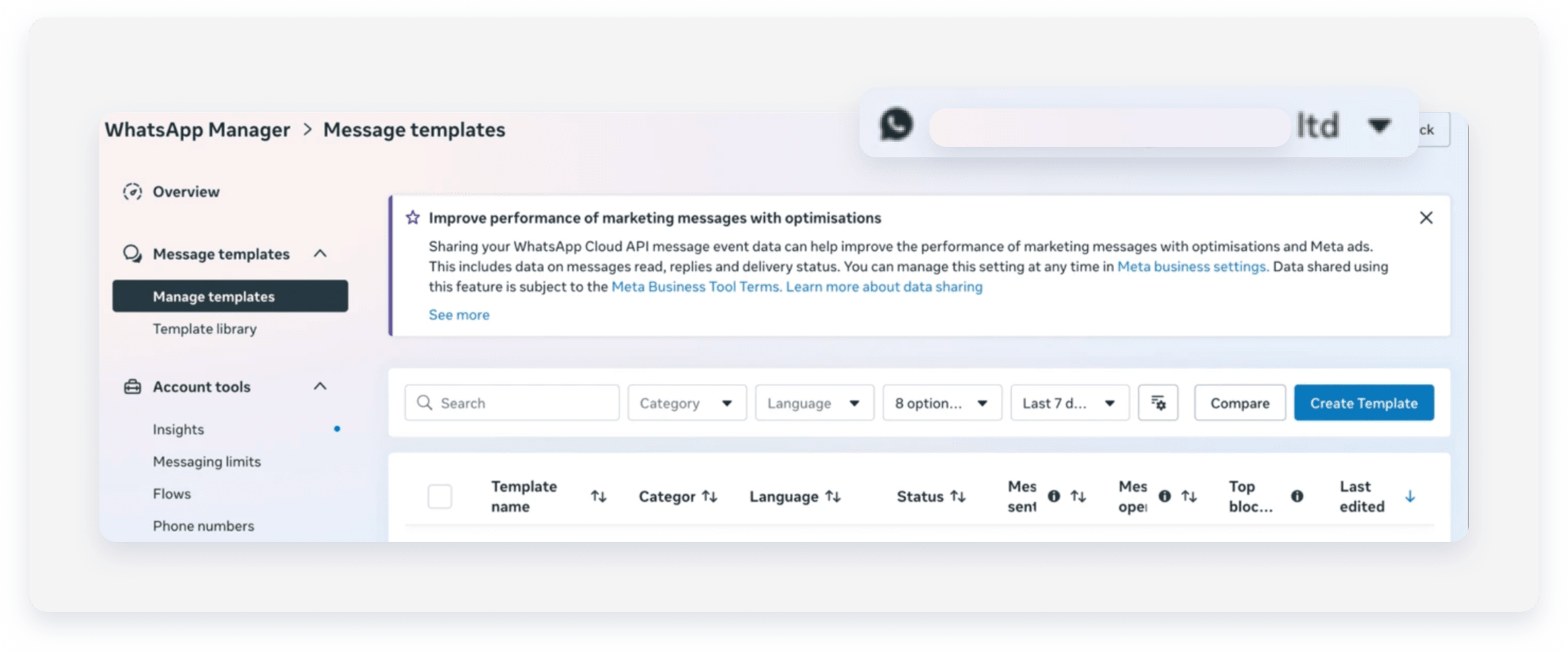
When you successfully integrate a WhatsApp Business Account with Guesty, templates created in Meta sync automatically. If these templates don't appear, create new templates or verify their status in Meta to trigger a sync.
Step by step:
-
In the side navigation menu, click
 Inbox. In the submenu, click WhatsApp and confirm there are no active error messages or disconnected states.
-
Go to a guest conversation and select WhatsApp as the communication method. If you are prompted to "Set up template on WhatsApp" and no Meta templates display, create a new template directly in Meta.

Note:
WhatsApp templates require Meta approval, which can take a few hours. To use a template in the Guesty Inbox, make sure its status in Meta is "Active (ready to send)".
If templates are "Active" in Meta but don't appear in Guesty after 24 hours, contact us. Include a screenshot of your Meta Business Suite template dashboard clearly showing the WhatsApp Business Account name and the status of the specific templates.