Use the Guesty mobile app to access many desktop features on the go. Tap  at the bottom of the app to open a listing's monthly calendar. In the top-right corner, tap
  to switch to the Multi-Calendar.
Manage your listings and reservations directly from the app.
Navigate the Multi-Calendar
Navigate your calendar using these features:
- Scroll vertically to view your listings with infinity scrolling, and tap the blue arrows to collapse or expand the list.
- Scroll horizontally to view all days of the month.
- Rotate your phone to enable landscape mode for a wider view.
- Tap the month name to open a mini calendar and jump to a specific date.
View listing and reservation details
Access specific details for your properties and guests directly from the calendar:
- Tap
 at the top-right corner to search for a listing by name, nickname, or guest name.
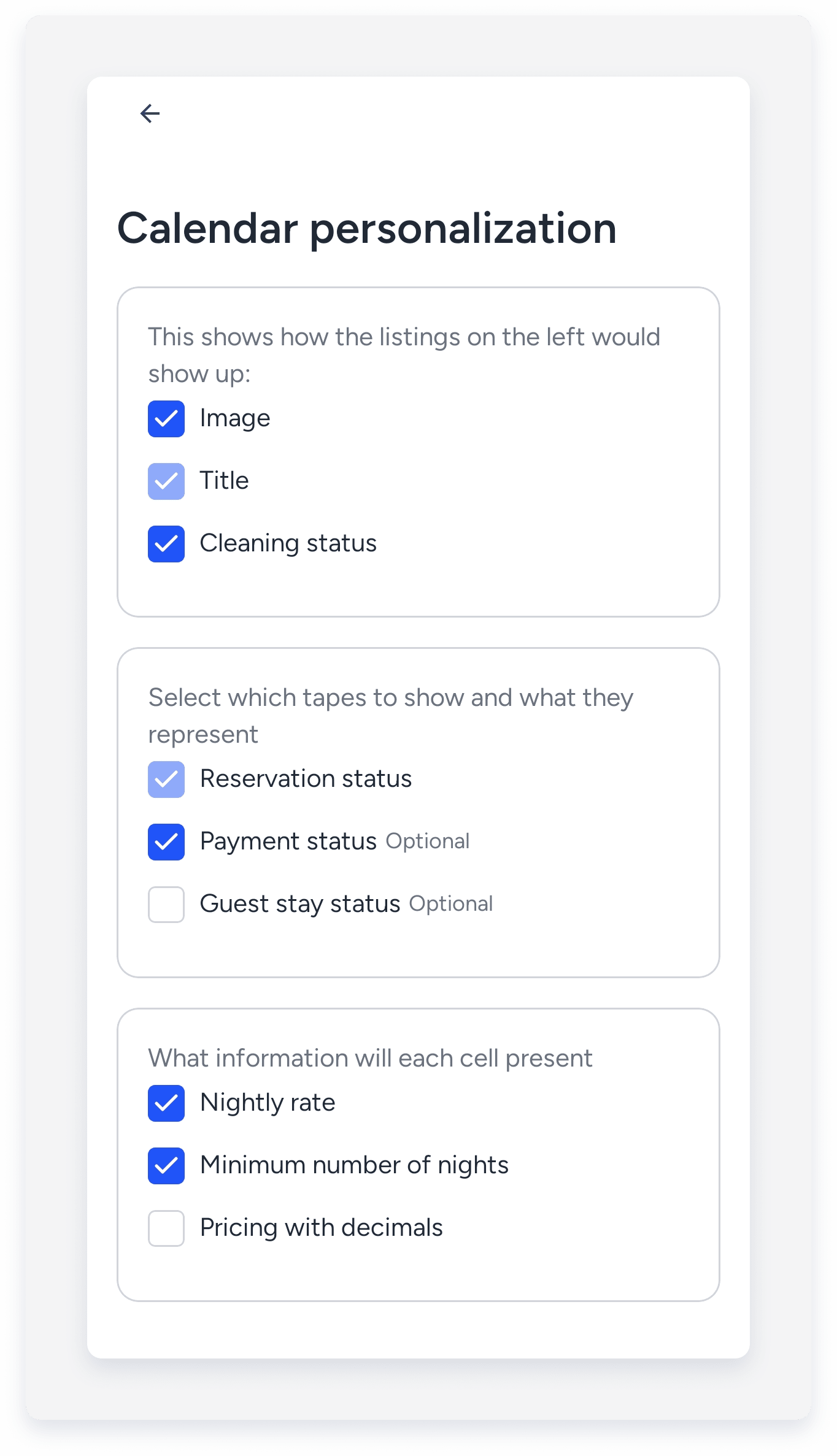
 - Personalize your calendar to view or hide property photos, property titles, cleaning status, payment status, and guest stay status.
Customize colors for reservation statuses.
- Tap a listing or reservation to view its details.
- Tap the cleaning icon under a listing to quickly update the cleaning status.
Tap the arrows next to the listings list to collapse or expand it.

Organize your view
At the top-right corner, tap  to filter listings by status, city, tags, amenities, number of guests, and number of bedrooms. At the top-left corner, tap Clear all to restore the default view.
Customize your view
At the top-right corner, tap  and select the relevant option from the list below.
Switch to a listing's monthly calendar
Tap Monthly to view a specific listing's monthly calendar, or tap Multi calendar to switch back to the general Multi-Calendar.
Switch back to legacy view
Toggle on Legacy view to view the legacy calendar. To switch back to the updated view, tap  . At the top of the screen, toggle on Calendar V3.
Personalize your view
Tap Personalize to customize your calendar. Select how the left-side menu listings appear, choose which tabs show on the calendar, what they represent, and what information each cell presents.
Review icons and colors guide
Tap Icon and color key to view a complete guide to all icons and color codes.
