Use additional fees to charge guests for extra services, such as late check-out, laundry, or activities. Our new additional fees interface provides clear information on how a particular fee syncs with each of your connected channels, and includes the following customization options:
Note:
Cleaning and extra person fees are considered basic fees, and can be edited under each listing.
Options to understand before starting
Fees need to be set up before they can be added to a reservation, they can't be created in the process of making or editing a reservation. Learn more below about the options available before starting the creation process.
We recommend reading this to understand who collects the additional fee from the guest.
If you sync with channels, the additional fee will be automatically added to new reservations. If you want it to appear on reservations that already exist in Guesty, add it manually.
Important:
When you add a new source or OTA channel to your account, you need to toggle on the additional fees for that new source or OTA. This ensures additional fees are automatically added to new reservations from that source.
Taxes
If you want taxes applied to a new fee, you must edit your tax configurations to include the newly created fee under "invoice items to tax".
Select fee type
We provide a list of popular fee types, e.g. "pet", "resort", "linens".
The fee type is how the fee is presented throughout Guesty. This is what you see displayed in reservations reports, etc. Each fee type can only be used once.
How fee is calculated
Decide if the fee is a fixed amount or a percentage, and how it's calculated. Fixed fees can be applied per stay, per guest, per night, or per guest per night. Percentage fees are calculated on top of the accommodation fare, the cleaning fee, or both.
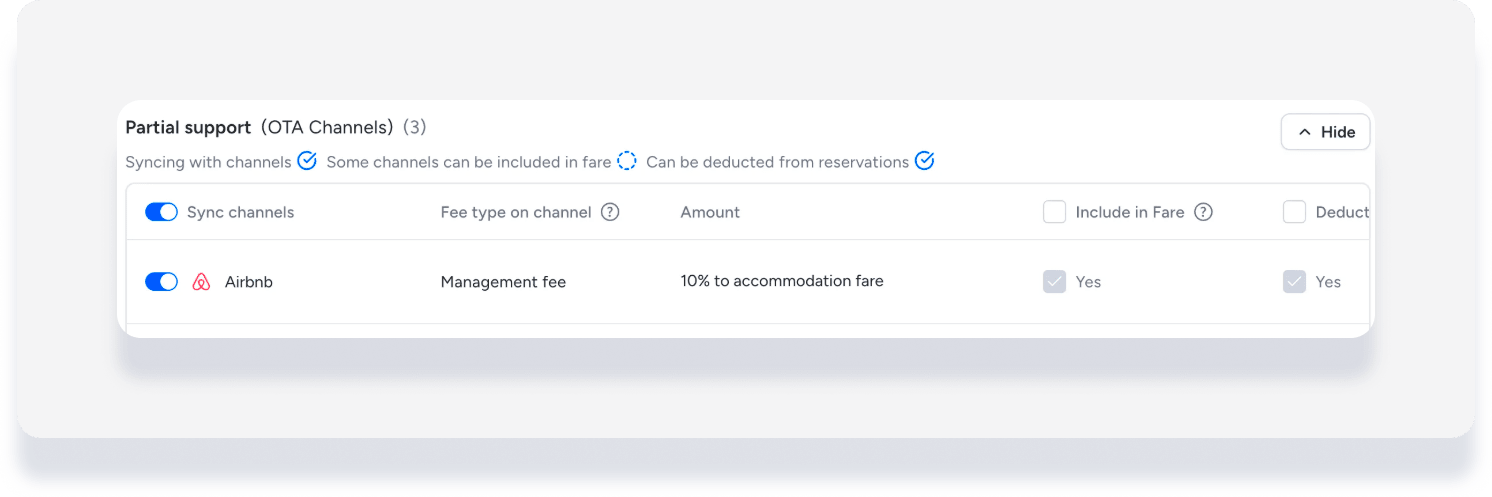
These settings create many combinations, but not all are supported by all channels. This is indicated during the fee creation process based on your connected channels. For example, if you create a fee as a percentage applied to accommodation fare + cleaning fee, you'll see in the UI that the calculation for Airbnb is based on accommodation fare only.
Channel notes and limitations
Airbnb
All fees synced with Airbnb are automatically included (bundled) as part of the accommodation fare to the guest. They're also deducted from the accommodation fare so they appear as a separate line item in the guest folio and reports.
Percentage fees apply to the accommodation fare only.
See additional details and restrictions about syncing fees with Airbnb.
Vrbo
A pet fee only syncs if the listing allows pets. Toggle on "Allow Pets" and "Charges May Apply" under the listing's house rules. Vrbo doesn't support "per stay" as a condition for calculating the pet fee. You can use "per pet," "per pet per night," or "per night."
The pet fee for Vrbo is always included and deducted from accommodation fare by default.
If you have the Vrbo limited sync connection type, this action must be taken in Vrbo.
Fixed fees can be "Per night", "Per guest", "Per stay", or "Per guest per night".
Percentage fees must be based on the "Accommodation fare".
If you're on limited sync with Vrbo, set the cleaning fee in Vrbo. If you're on full sync, continue with the steps below to set the fee in Guesty. Not sure? Learn how to identify your connection type.
Booking.com
For linked listings, edit the cleaning fee in both Guesty and in the Booking.com Extranet.
Add new fee to a listing
Step by step:
- Sign in to your Guesty account.
- In the side navigation menu, click
 Properties overview.
 - Click the relevant listing.
- In the submenu, click Pricing & policies and select Additional fees.
- Click Add custom listing fee.
- Fee type: Select from the dropdown menu.
- Fee name: Enter freeform text. Guests will not see this unless you set it as an upsell on your Guesty website. If so, it will not be translated on your site.
-
Pricing conditions:
- Choose if the fee is a fixed amount or a percentage, and enter the amount. For example: $50, or 10%.
- Select how to apply the fee. For example: $50 per night, or 10% of accommodation fare.
-
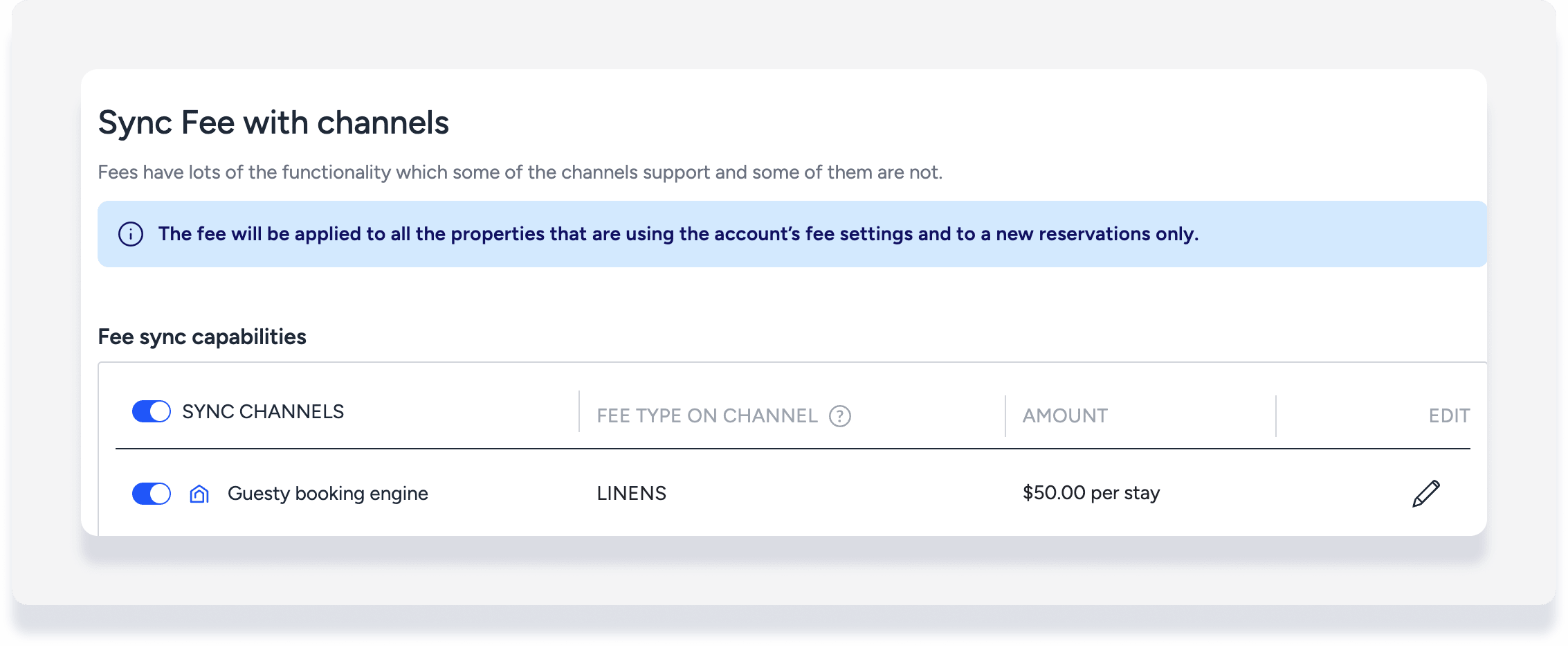
Sync fee with channels:
- Toggle off for the fee will need to be added manually to all reservations.
-
Toggle on to automatically include the fee in new reservations for your connected channels. If the fee type is supported by a channel, the fee that is visible to guests on the channel is displayed.
- Click
 to edit and select a different fee supported by the channel.
- Click
- At the top right, click Save.
Tip:
After the fee is created, you can still add it manually to reservations from channels that cannot automatically sync the fee.
