Use the Guesty Shield report to track your protected reservations. This report helps you monitor upcoming and past covered stays, analyze costs, and export data to verify coverage.
View the Guesty Shield report
Follow the steps below to view the Guesty Shield report.
Step by step:
- Sign in to your Guesty account.
- In the side navigation menu, click
 Integrations to open the dropdown menu.
 - Select Guesty Add-ons.
- In the Guesty Shield thumbnail, click Launch.
- In the submenu, click Reservations.
Customize and download the report
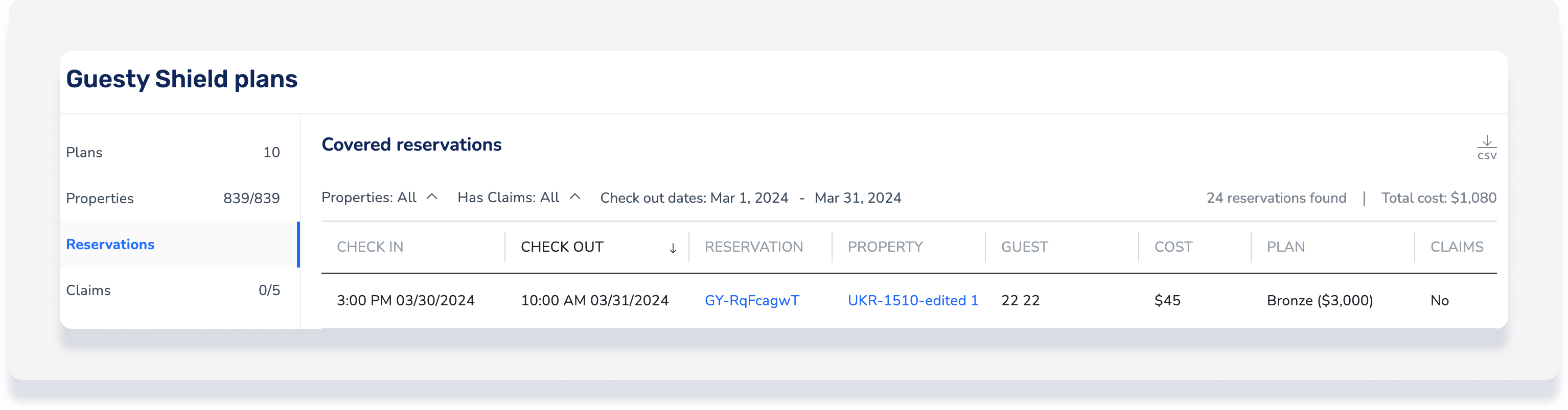
The report displays covered reservations that checked out during the previous month, sorted by the most recent check-out date.
Filter the report to view specific details:
- Change date range: Click the dates to select a new range from the calendar pop-up.
- Filter by property: Click the dropdown menu next to "Properties".
- Filter by claim status: Click the dropdown menu next to "Claims".
- View reservation details: Click the reservation number.
- View property details: Click the property name.
Click  to download the report.
Check if a reservation is covered
Important:
Guesty Shield protection doesn't apply retroactively to stays that have already begun. For example, if you create a reservation after the check-in time, the reservation is not covered.
Follow the steps below to verify if a reservation is covered under Guesty Shield directly on the reservation page.
Step by Step:
- Sign in to your Guesty account.
- In the side navigation menu, click
 Reservations report.
 - Click the relevant reservation.
- Select the Guesty Shield tab on the reservation submenu.
If the reservation status changes to anything other than "Confirmed" during the guest's stay:
- Check-out is today or in the past: The plan remains active and applies to the reservation.
- Check-out is in the future: The plan is canceled and won't apply to the reservation.
See where Guesty Shield's Damage Protection or Screen & Protect plans are available.
