Add a link to your listing page in the booking channel to navigate between Guesty and the connected channels more seamlessly.
Access the listing page in a connected channel
There are two ways to access your listing page in a connected channel:
The channel integration page
When you connect a listing to Airbnb, Booking.com, or Vrbo (Full sync only), the link automatically appears on the integration page under "Listing in channel" or "Channel ID" columns. Click the listing name to access its page in the channel.
For listings connected to the Booking Engine, the link automatically appears on the Booking Engine integration page.
To access the integration page, in the top navigation bar, click Channels. Select the relevant channel.
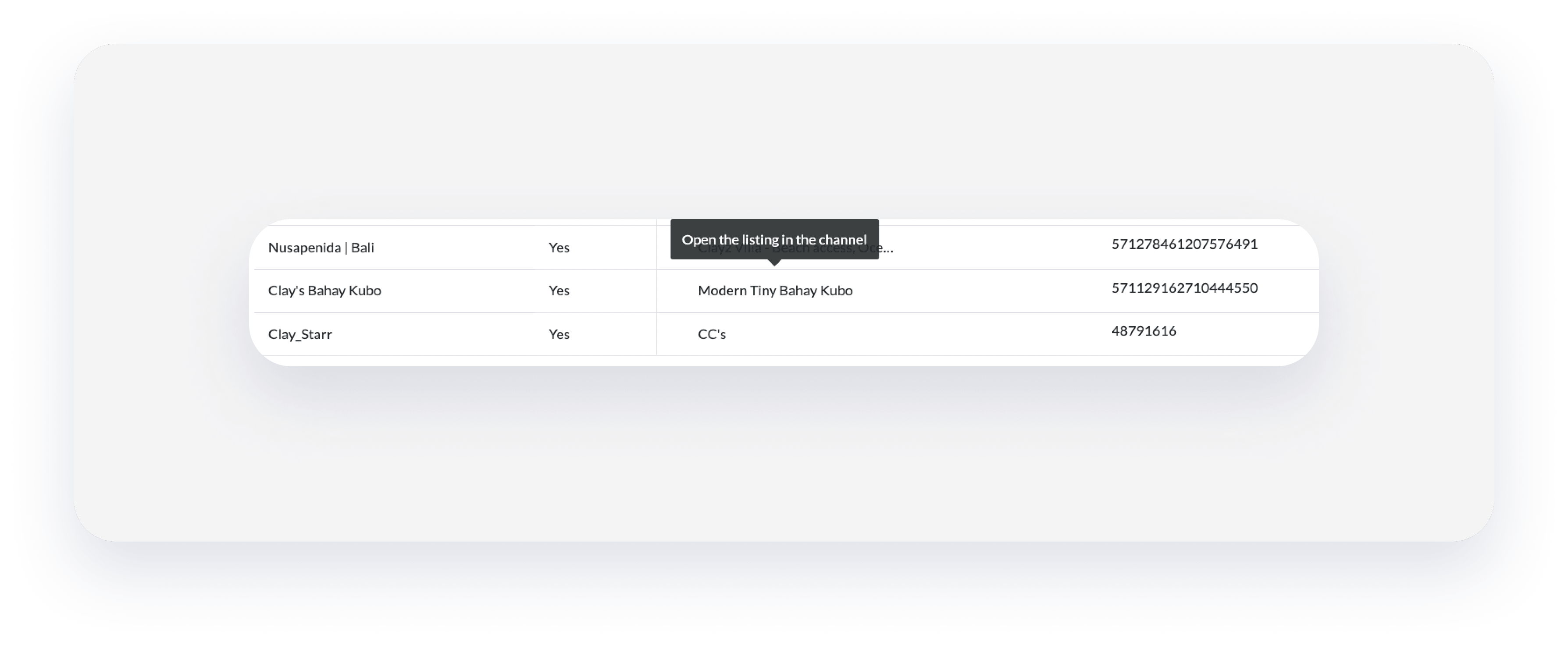
Under the property’s photo
Access the listing page on connected channels using the channels list below the property's photo. The channel's icon appears there once you connect a listing to a channel.
To view a listing, click Listings in the top navigation bar. Select the relevant listing.
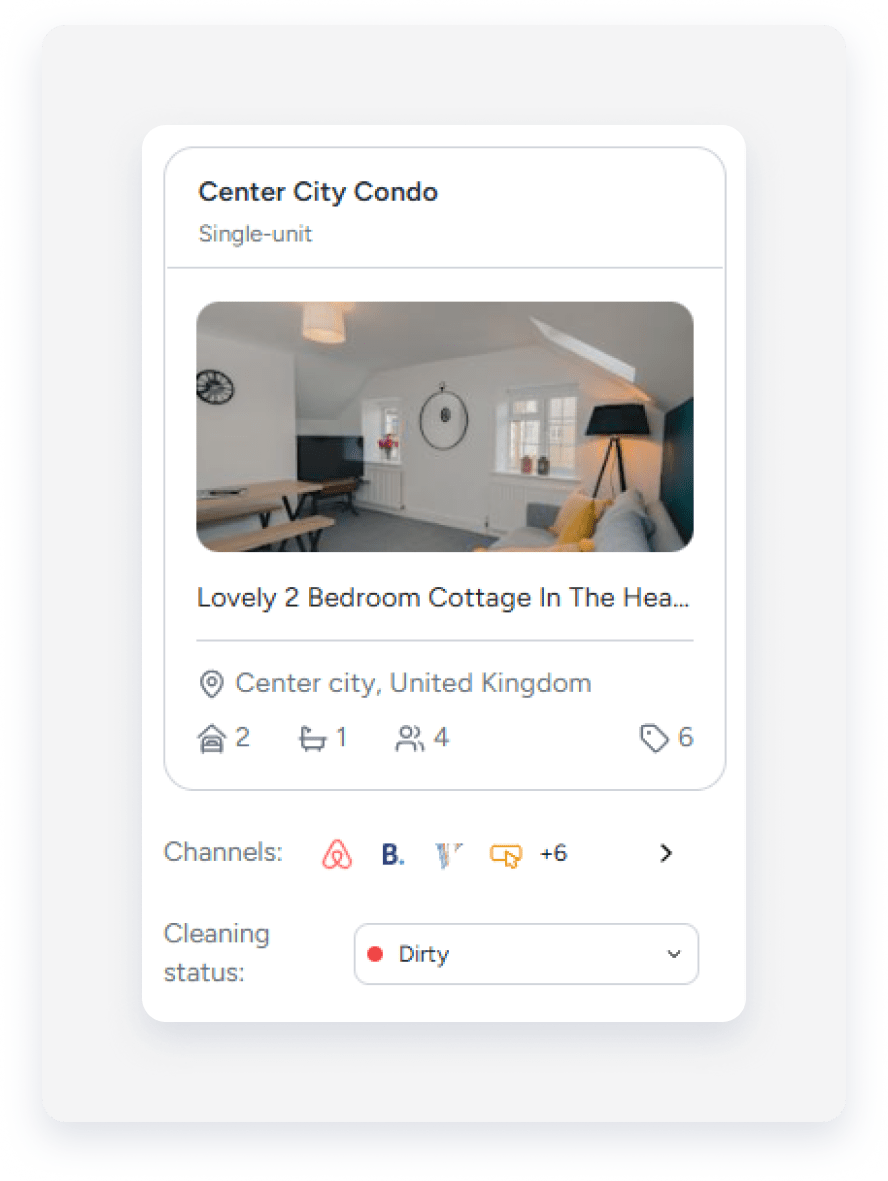
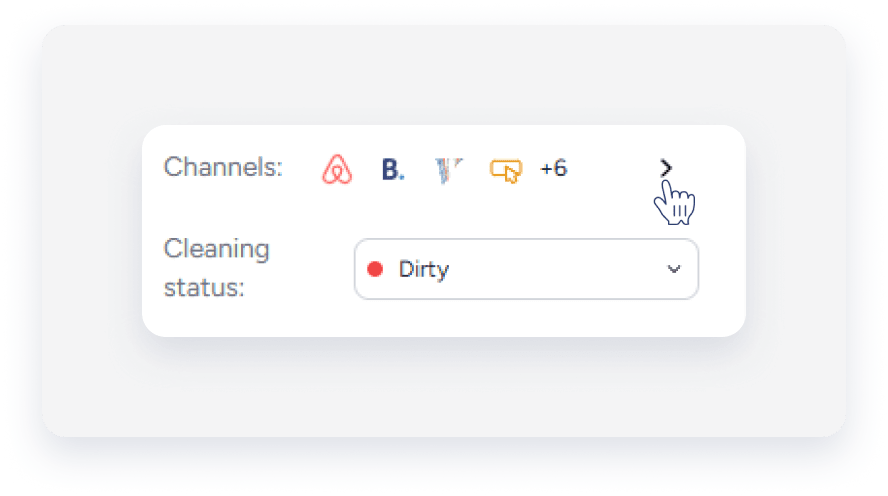
If the listing is already connected to channels, click the arrow next to the channel icons to open the channels list in the right-side panel.
Manage links
Manage your channel listing links directly from the channels list in the right-side panel.
For listings connected to Airbnb, Booking.com, and the Booking Engine:
- To copy a link, click
 .
. - To open the listing page in the channel, click
.
- Add or edit the channel's listing page URL in the relevant field, then click Save at the bottom of the panel.
For listings connected to Airbnb and the Booking Engine, the link generates automatically when you connect to the channel.
Note:
For properties connected to Booking.com, the link isn't immediately available. The property link appears in Guesty after it sends the first update to Booking.com. This happens automatically when you change the property's pricing, markups, fees, content, or description.

