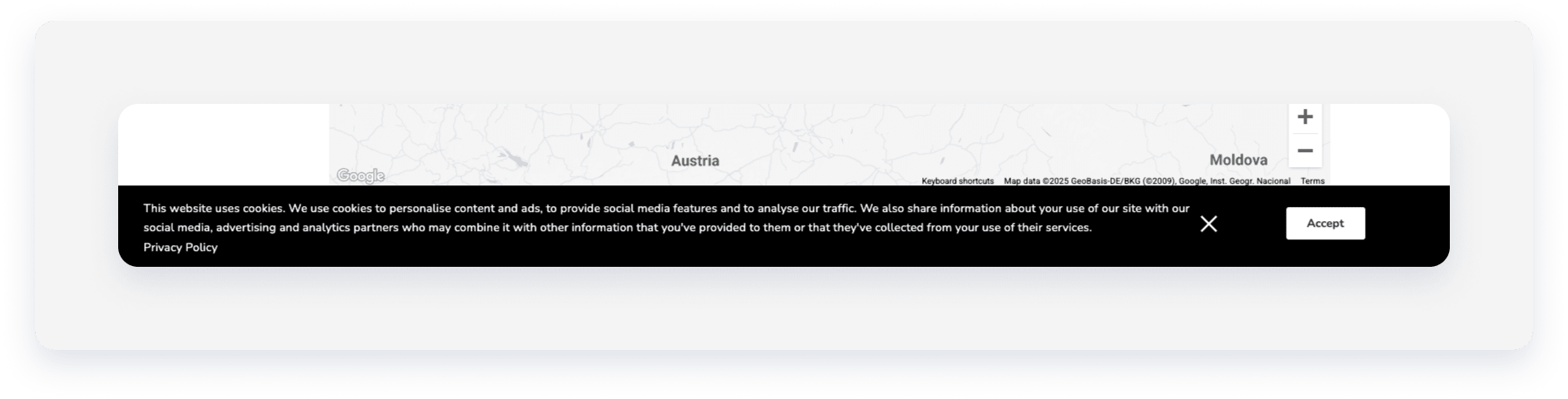
Follow the steps to disable or remove the cookies banner from the Guesty Booking Website.
Important:
Disabling the cookie banner may violate global privacy laws like GDPR, LGPD, and CCPA, which require websites to provide transparent data tracking disclosures and user consent options.
Step by step:
- Sign in to your Guesty account.
- In the side navigation menu, click
 Channels to open the dropdown menu.
 - Select Booking website.
- Click the edit
 icon of the relevant booking website.
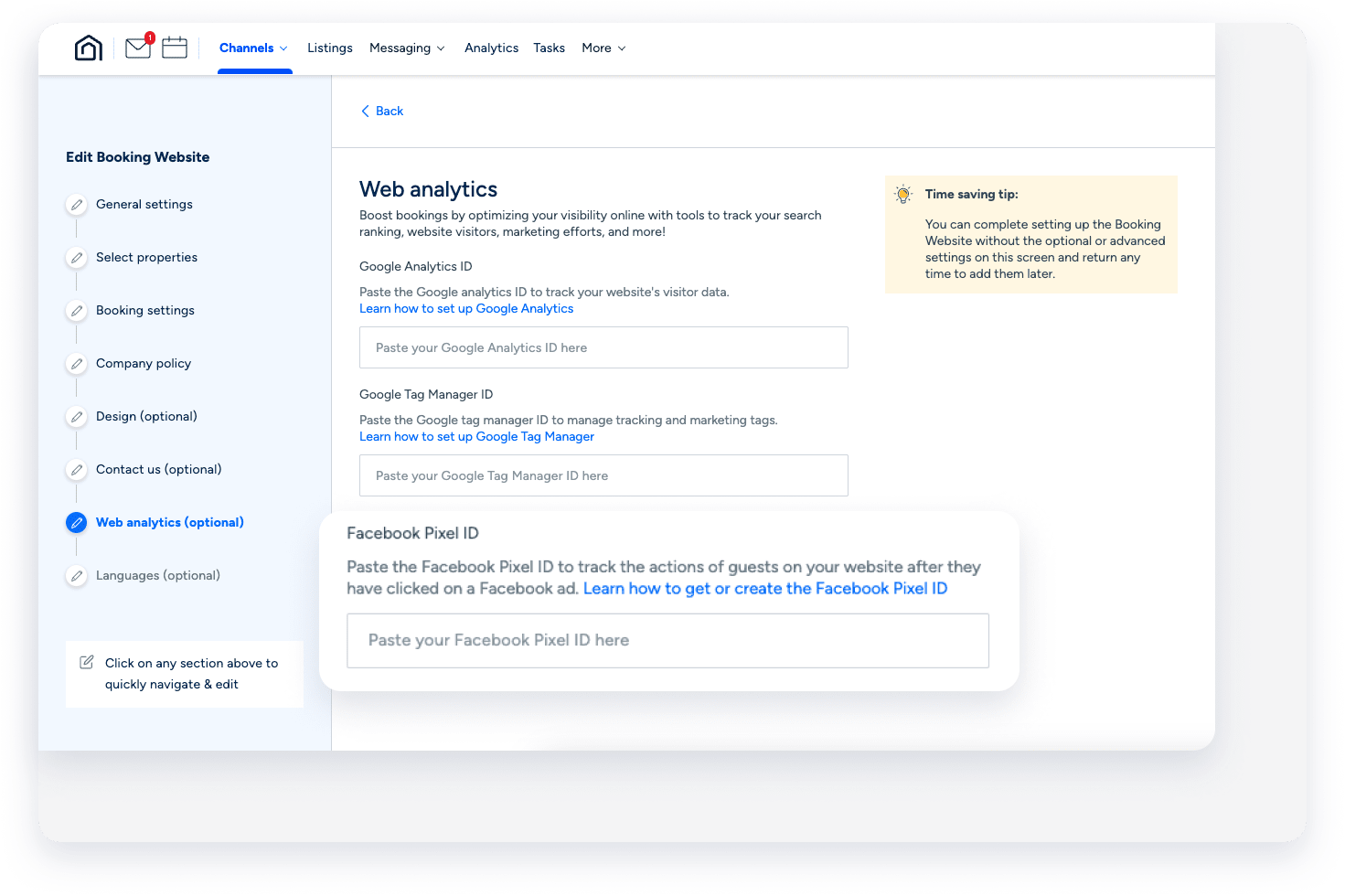
 - In the submenu, click Web analytics (optional).
- Clear the "Facebook Pixel ID" field. By clearing this field, you will disable the Cookies Banner from appearing on your Booking Website.
- Click Next and then Save Booking Engine.
Hide the cookies banner
To hide the cookies banner while keeping the Facebook Pixel ID, follow the step below.
Step by step:
- Sign in to your Guesty account.
- In the side navigation menu, click Channels to open the dropdown menu.
- Select Booking website.
- Click the edit icon of the relevant booking website, and then select Edit Booking Website.
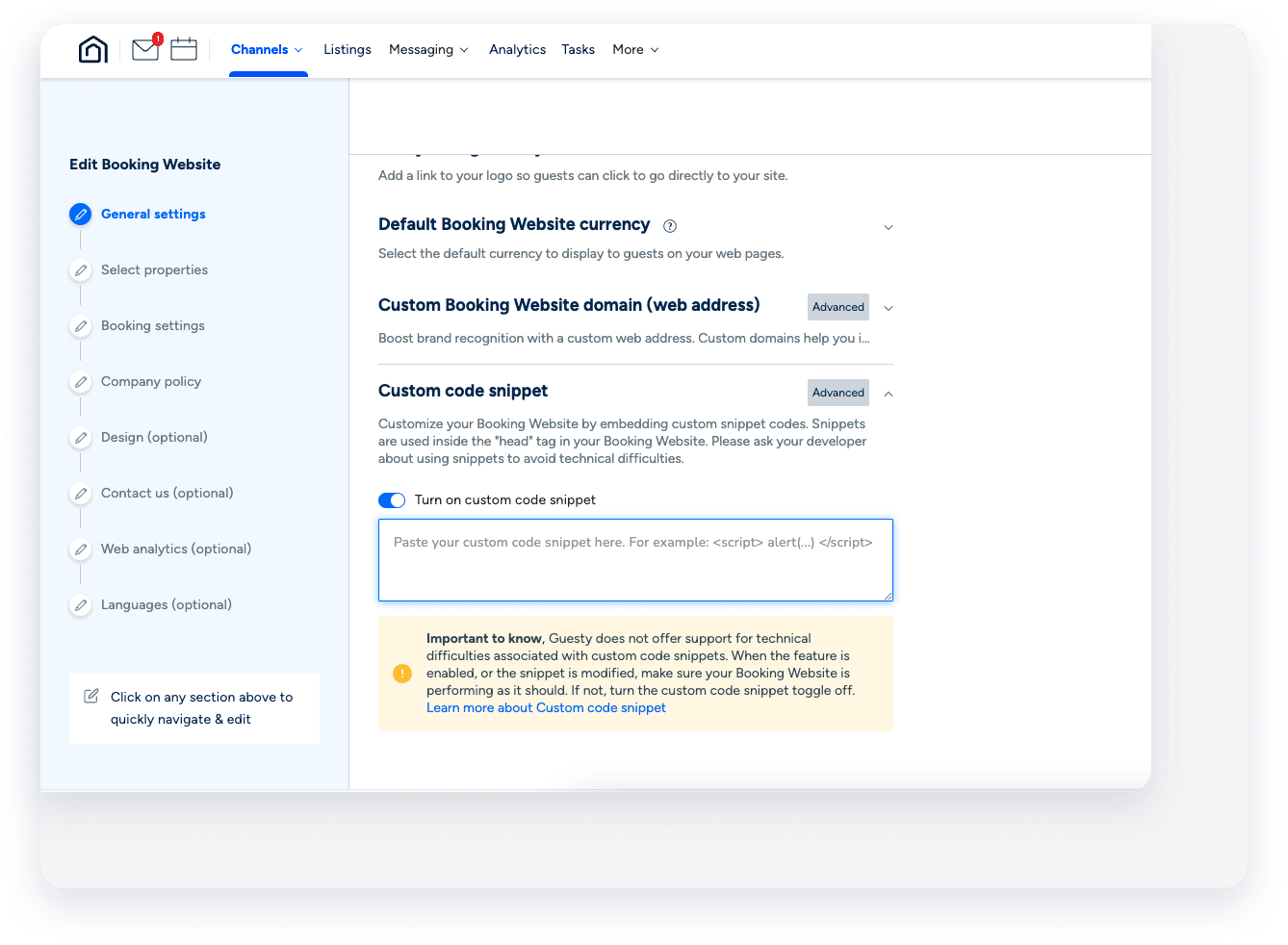
- Under "Custom code snippet", click Advanced.
- Toggle Turn on custom code snippet.
-
Copy and insert the custom code below into the text field:
<script type="text/javascript" id="Cookiebot" src="https://consent.cookiebot.com/uc.js" data-cbid="01234567-89ab-cdef-0123-456789abcdef" data-widget-enabled="false" async></script> - Navigate to "Web analytics (optional)" by clicking it in the submenu, or by clicking Next a few times at the top right of your screen.
- Click Save Booking Website.
